Download Existing Item associations with Subinventories and Locators
There are two methods to download existing Item associations: Download via Form and Download via Sheet.
Download via Form
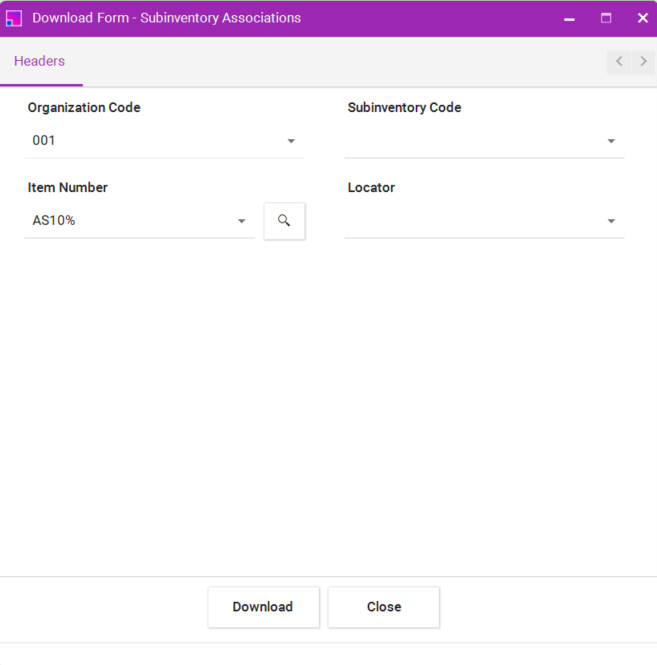
Download via Form allow you to filter your results using the following criteria:
-
Organization Code (Manadatory)
-
Item Number
-
Subinventory Code
-
Locator Name
This method allows you to search for values directly within the form. If you’re uncertain of the entire value, use the wildcard symbol '%' to represent unknown characters in your search. Follow these steps:
-
Open the Data Form.
-
Use the search function to input the values you’re looking for. Remember, you can use the wildcard symbol '%' to substitute for unknown parts of the value.
-
Once you’ve found the desired values, select 'Download'. The Item associated with Subinventory and Locators will be downloaded based on your search criteria.
Download via Sheet
Download via Sheet allow you to filter your results using the following criteria:
-
Organization Code (Manadatory)
-
Item Number
-
Subinventory Code
In this method, the values you input on the sheet serve as search parameters. Remember, only the columns marked with a triangle symbol can be used as search filters. If you’re unsure of the entire value, use the wildcard symbol '%'. Follow these steps:
-
Open the Sheet and input your desired search parameters into the columns that have a triangle symbol. Use the wildcard '%' to substitute for unknown parts of the value.
-
Once you’ve filled in the required search parameters, select 'Download'. The associations will be downloaded based on the data you have input.
