Download Inventory Transactions
The Inventory Transactions Integrator provides four distinct download sources, each retrieving a different set of data from Oracle ERP Cloud. Select the appropriate download source based on the information you need to review, analyse, or use as the basis for an update or delete operation.
To perform a download, navigate to the Download icon of the Integrator in the More4apps ribbon, select your desired download source, enter the applicable filter criteria, and click Download. Results are populated directly into the Excel sheet.
How to Download
Navigate to the Download icon of the Inventory Transactions Integrator in the More4apps ribbon.
Download via Form
This method allows you to search for values directly within the form. If you’re uncertain of the entire value, use the wildcard symbol '%' to represent unknown characters in your search. Follow these steps:
-
Open the Data Form.
-
Use the search function to input the values you’re looking for. Remember, you can use the wildcard symbol '%' to substitute for unknown parts of the value.
-
Once you’ve found the desired values, select 'Download'. The Sales Orders will be downloaded based on your search criteria.
Download via Sheet
In this method, the values you input on the sheet serve as search parameters. Remember, only the columns marked with a triangle symbol can be used as search filters. If you’re unsure of the entire value, use the wildcard symbol '%'. Follow these steps:
-
Open the Sheet and input your desired search parameters into the columns that have a triangle symbol. Use the wildcard '%' to substitute for unknown parts of the value.
-
Once you’ve filled in the required search parameters, select 'Download'. The assignments will be downloaded based on the data you have input.

Download Sources
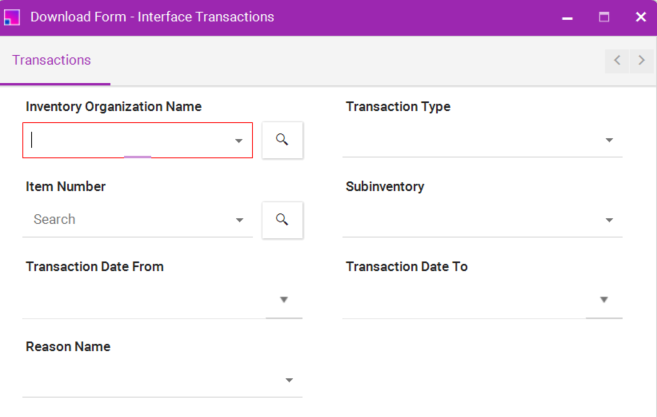
Download Source 1: Interface Transactions
This download retrieves transactions that currently exist in the Oracle Inventory Transaction Interface (INV_TRANSACTIONS_INTERFACE). These are transactions that have been created but not yet processed and posted to inventory by Oracle. Use this source to review, modify, or delete pending transactions before they are processed.
Available Filter Criteria:
Filter Field |
Required |
Description |
Inventory Organization |
Yes |
The name of the Inventory Organization. Note: the Oracle REST Web Service for interface transactions filters by organization name, not organization code. |
Interface Transaction ID |
No |
The interface transaction ID is returned after a successful upload. You can use this ID to download and retrieve the corresponding record. |
Transaction Type |
No |
Filter by one of the seven supported transaction types to narrow the results returned. |
Item Number |
No |
Filter transactions for a specific inventory item. |
Subinventory |
No |
Filter by a specific source or destination subinventory. |
Transaction Date From |
No |
Return interface transactions with a transaction date on or after this date. |
Transaction Date To |
No |
Return interface transactions with a transaction date on or before this date. |
Reason |
No |
Filter by a specific transaction reason code assigned to the interface transaction. |
Note: Interface transactions downloaded from this source are in a pending state and are eligible for Update and Delete operations using this integrator. Large downloads may take additional time depending on the volume of transactions in Oracle ERP Cloud. It is recommended to use date range filters and specific transaction type filters to limit the number of records returned and improve download performance.
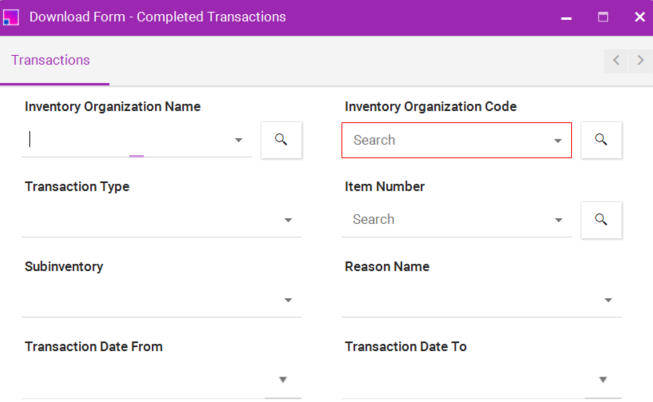
Download Source 2: Completed Transactions
This download retrieves transactions that have been fully processed by Oracle and posted to the base inventory transaction history tables (INV_MATERIAL_TRANSACTIONS). These transactions have already updated inventory balances and are considered final. Use this source for reporting, audit, and reconciliation purposes.
Available Filter Criteria:
Filter Field |
Required |
Description |
Inventory Organization |
Yes |
Filter by the name of the Inventory Organization Name. |
Inventory Code |
Yes |
Filter by the Inventory Organization Code. Note: |
Transaction Type |
No |
Filter by one of the seven supported transaction types to narrow the results returned. |
Item Number |
No |
Filter transactions for a specific inventory item. |
Subinventory |
No |
Filter by a specific source or destination subinventory. |
Transaction Date From |
No |
Return interface transactions with a transaction date on or after this date. |
Transaction Date To |
No |
Return interface transactions with a transaction date on or before this date. |
Reason |
No |
Filter by a specific transaction reason code assigned to the interface transaction. |
Note: Completed transactions have already updated inventory balances and cannot be updated or deleted through this Integrator. This source is intended for reference and audit purposes only. Large downloads may take additional time depending on the volume of transactions in Oracle ERP Cloud. It is recommended to use date range filters and specific transaction type filters to limit the number of records returned and improve download performance.
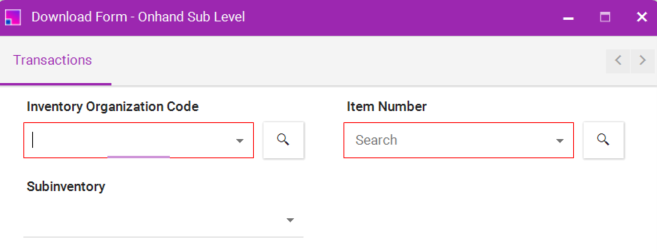
Download Source 3: Onhand by Subinventory
This download retrieves the current on-hand inventory quantities summarised at the Subinventory level. For each item in the specified Organization, a single consolidated quantity is returned representing the total on-hand stock across all subinventories and locators. Use this source for a high-level inventory position review.
Filter Field |
Required |
Description |
Organization |
Yes |
The Inventory Organization is mandatory. On-hand quantities are returned for all items within this organization. |
Item Number |
Yes |
Restrict results to a specific item number assigned to the organization. |
Subinventory |
No |
Limit results to on-hand quantities held within a specific subinventory. |
Note: On-hand quantities returned by this source are read-only and are for reference purposes. On-hand balances cannot be directly updated or deleted through the Inventory Transactions Integrator; they are maintained by the processing of transactions.
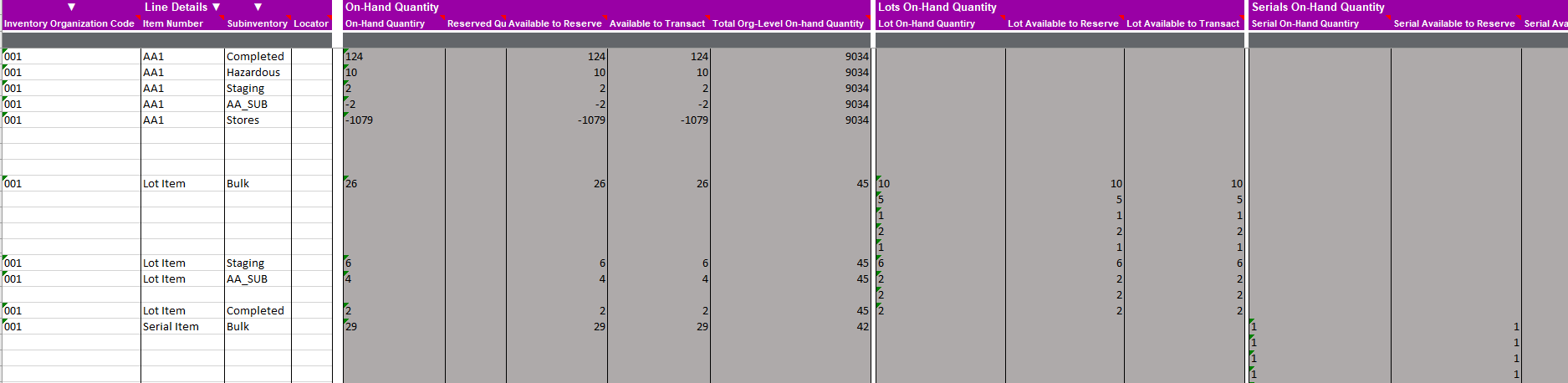
Read-Only Columns Returned
The following quantity columns are returned by this download source 3. All columns are read-only and cannot be edited in the sheet.
Column |
Description |
On-Hand Quantity |
The total quantity of the item physically in stock within the organization in the primary unit of measure. This is the sum of all on-hand quantity across all subinventories for the item. |
Reserved Quantity |
The quantity of the item that has been reserved against an existing demand, such as a sales order, account alias, or other reservation source. This quantity is committed and cannot be used for other transactions until the reservation is fulfilled or released. |
Available to Reserve (ATR) |
The quantity of the item that is available to be reserved for new demand. Calculated as On-Hand Quantity minus Reserved Quantity. Only stock held in reservable subinventories is included in this figure. |
Available to Transact (ATT) |
The quantity of the item that can be physically issued or transacted right now. This is the most restrictive availability figure — it excludes reserved quantity and any quantity held in non-nettable or non-transactable subinventories. |
Total Org-Level On-Hand Quantity |
The consolidated on-hand quantity for the item across the entire organization, regardless of subinventory or locator. This represents the grand total of stock held at the organization level and is useful for high-level inventory position reporting. Because it is an aggregated total, the same value may appear repeatedly on multiple rows. |
Note: All columns in this section are read-only. The quantity figures are calculated and maintained by Oracle ERP Cloud and reflect the current state of inventory at the time of download. Reserved Quantity and Total Org-Level On-Hand Quantity are available on this source only.

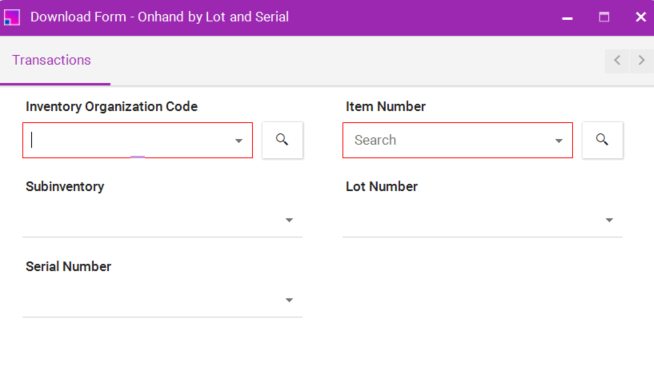
Download Source 4: Onhand by Lot and Serial
This download retrieves on-hand inventory quantities at the most granular level available in Oracle ERP Cloud. Results are broken down by Subinventory, Locator, Lot Number, and Serial Number where applicable. Use this source when you need a detailed view of where inventory is physically held within the Organisation.
Filter Field |
Required |
Description |
Organization |
Yes |
The Inventory Organization is mandatory. On-hand quantities are returned for all items within this organization. |
Item Number |
Yes |
Restrict the detail on-hand results to a specific inventory item. |
Subinventory |
No |
Limit results to on-hand quantities held within a specific subinventory. |
Lot Number |
No |
Filter by a specific lot number. Applicable only for lot-controlled items. Results will show on-hand quantity for that lot broken down by locator. |
Serial Number |
no |
Filter by a specific serial number. Applicable only for serial-controlled items. Returns the current on-hand location of that serial number. |
Note: The detail-level download may return a large number of rows for organisations with high item and locator volumes. Use the Item Number and Subinventory filters to limit the result set and improve download performance. The filter by Locator can only be applied through the Sheet filter.
The downloaded data is organised into three sections depending on the item’s inventory control type.
On-Hand Quantity Section — For items that are not lot-controlled or serial-controlled, on-hand quantities are downloaded directly into the On-Hand Quantity section. The following read-only columns are returned: On-Hand Quantity, Reserved Quantity, Available to Reserve, Available to Transact, and Total Org-Level On-Hand Quantity.
Lots On-Hand Quantity Section — For lot-controlled items, on-hand quantities are downloaded into the Lots On-Hand Quantity section, grouped by lot number. The following read-only columns are returned per lot: Lot On-Hand Quantity, Lot Available to Reserve, and Lot Available to Transact. The On-Hand Quantity section will also be populated with the total on-hand quantity across all lots for the item at the subinventory level.
Serials On-Hand Quantity Section — For serial-controlled items, on-hand quantities are downloaded into the Serials On-Hand Quantity section, with one row returned per serial number. The following read-only columns are returned per serial: Serial On-Hand Quantity, Serial Available to Reserve, and Serial Available to Transact. The On-Hand Quantity section will also be populated with the total count of on-hand serial numbers at the subinventory level.
Note: Items that are both lot-controlled and serial-controlled is not supported.