Create Trading Partners
Trading Partners are external entities—such as suppliers, customers, manufactures or competitors.
|
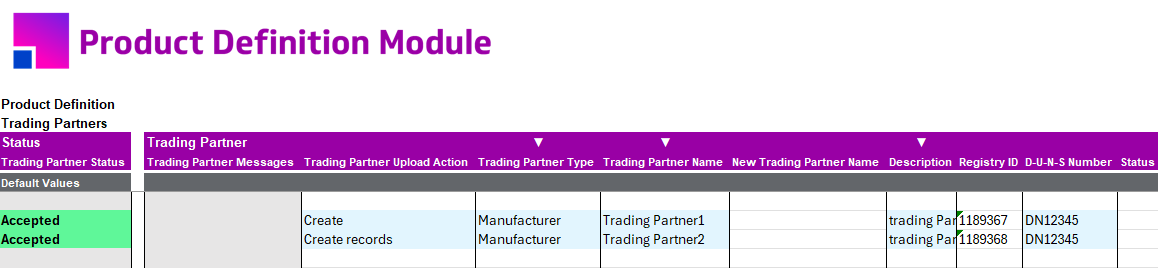
Trading Partners Section only support creating and updating manufacturer. Manufacturers are done within the application menu Product Management, Product Development, Create Manufacturer. |
To create a new manufacturer, the ‘Trading Partner Upload Action’ column value must be Create or Create records.
| Create records causes all related child components to default to the same action, while Create will only create that section. Refer to the Uploading section for more information on how to use the Create action. |

Input Method
There are two methods for entering values: direct input on the sheet or via a Data Form. Each method has its own advantages.
-
Direct Input on the Sheet
-
You can manually enter values directly onto the sheet.
-
This method allows you to copy and paste values from a different source.
-
Note that when uploading, a validation process will run to ensure the correctness of all entered values.
-
Data Form
-
The Data Form provides an alternative way to enter values.
-
It allows you to search or select values from pre-defined List of Values.
-
This can be useful when you don’t know the exact value to enter on the sheet.
-
Trading Partner Section Creation
Trading Partner is a parent section and there fore the values are required for the child sections. To create a new Manufacturer, the following values are required and must be included as part of the upload:
-
Trading Partner Type
-
Trading Partner Name
Trading Partner Type
This field includes suppliers, customers, manufacturers, or competitors. While only manufacturers can be created, the other values are necessary for use in the child sections.
Attachments
Click attachments for more information about how to create Attachments using the Trading Partner Integrator. Attachments will not be downloaded to the sheet. Navigate to Oracle to view attachments against the Trading Partner.
For the attachment type 'File,' there is a known bug in the Oracle REST web service that prevents the Attachment Title from being uploaded correctly. As a result, you must leave the Attachment Title field blank when uploading a file. When left blank, the system automatically defaults the Attachment Title to the name of the uploaded file. This workaround ensures that the attachment is uploaded successfully without errors related to the title field. It is important to remember this limitation to avoid issues with file attachments in Oracle. You will get an error below if you enter an Attachment Title when uploading a file.

Trading Partner Item Section Creation
This section is used to create the trading partner items associated with the trading partner listed in the parent section. The Trading Partner Item section is designed to support suppliers, customers, manufacturers, or competitors transaction types.
To create a new trading partner item, the following values are required and must be included as part of the upload:
-
Trading Partner Type (from the Trading Partner section)
-
Trading Partner Name (from the Trading Partner section)
-
Trading Partner Item
-
Start date (which will default to today’s date)

Trading Partner Item DFFs
Descriptive Flexfields
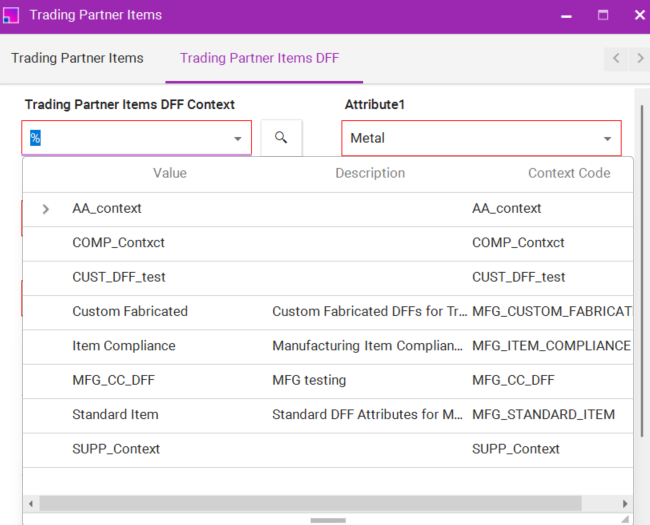
The DFF context will display all the different DFF contexts in the List of Values (LOV). The appropriate context type depends on the Trading Partner Type.
-
If the Trading Partner Type is a customer, the context code that will work will start with 'CUST'
-
For suppliers, the context code will begin with 'SUPP'
-
For competitors, the code will start with 'COMP'
-
For manufacturers, the context code will be prefixed with 'MFG'
If you select any other context code, the system will generate an error. For more information on this limitation, please refer to the relevant documentation.
Refer to the Descriptive Flexfields documentation for more information.
Trading Partner Item Attachments
Click attachments for more information about how to create Attachments using the Trading Partner Integrator. Attachments will not be downloaded to the sheet. Navigate to Oracle to view attachments against the Trading Partner.
For the attachment type 'File,' there is a known bug in the Oracle REST web service that prevents the Attachment Title from being uploaded correctly. As a result, you must leave the Attachment Title field blank when uploading a file. When left blank, the system automatically defaults the Attachment Title to the name of the uploaded file. This workaround ensures that the attachment is uploaded successfully without errors related to the title field. It is important to remember this limitation to avoid issues with file attachments in Oracle. You will get an error below if you enter an Attachment Title when uploading a file.
Trading Partner Item Relationship Section Creation
This section is intended for creating inventory items associated with the trading partner item listed in the parent section, which includes the trading partner name from its parent section. The Trading Partner Item Relationships section is designed to accommodate various transaction types related to suppliers, customers, manufacturers, or competitors.
To establish a new trading partner item relationship, the following values can be included in the upload:
-
Trading Partner Type (from the Trading Partner section)
-
Trading Partner Name (from the Trading Partner section)
-
Trading Partner Item (from the Trading Partner Item section)
-
Organization
-
Inventory Item Number
-
Rank (when the Transaction type is Customer)
-
Competitor Type (when the Transaction Type is Compatitor)
-
Start Date (default is the current date)
-
End Date (optional)
-
Description (optional)
-
Status (optional)

Trading Partner Item Relationships DFFs
Descriptive Flexfields
The DFF context will display all the different DFF contexts in the List of Values (LOV). The appropriate context type depends on the Trading Partner Type.
-
If the Trading Partner Type is a customer, the context code that will work will start with 'CUST'
-
For suppliers, the context code will begin with 'SUPP'
-
For competitors, the code will start with 'COMP'
-
For manufacturers, the context code will be prefixed with 'MFG'
If you select any other context code, the system will generate an error. For more information on this limitation, please refer to the relevant documentation.
Refer to the Descriptive Flexfields documentation for more information.