Create Sales Orders
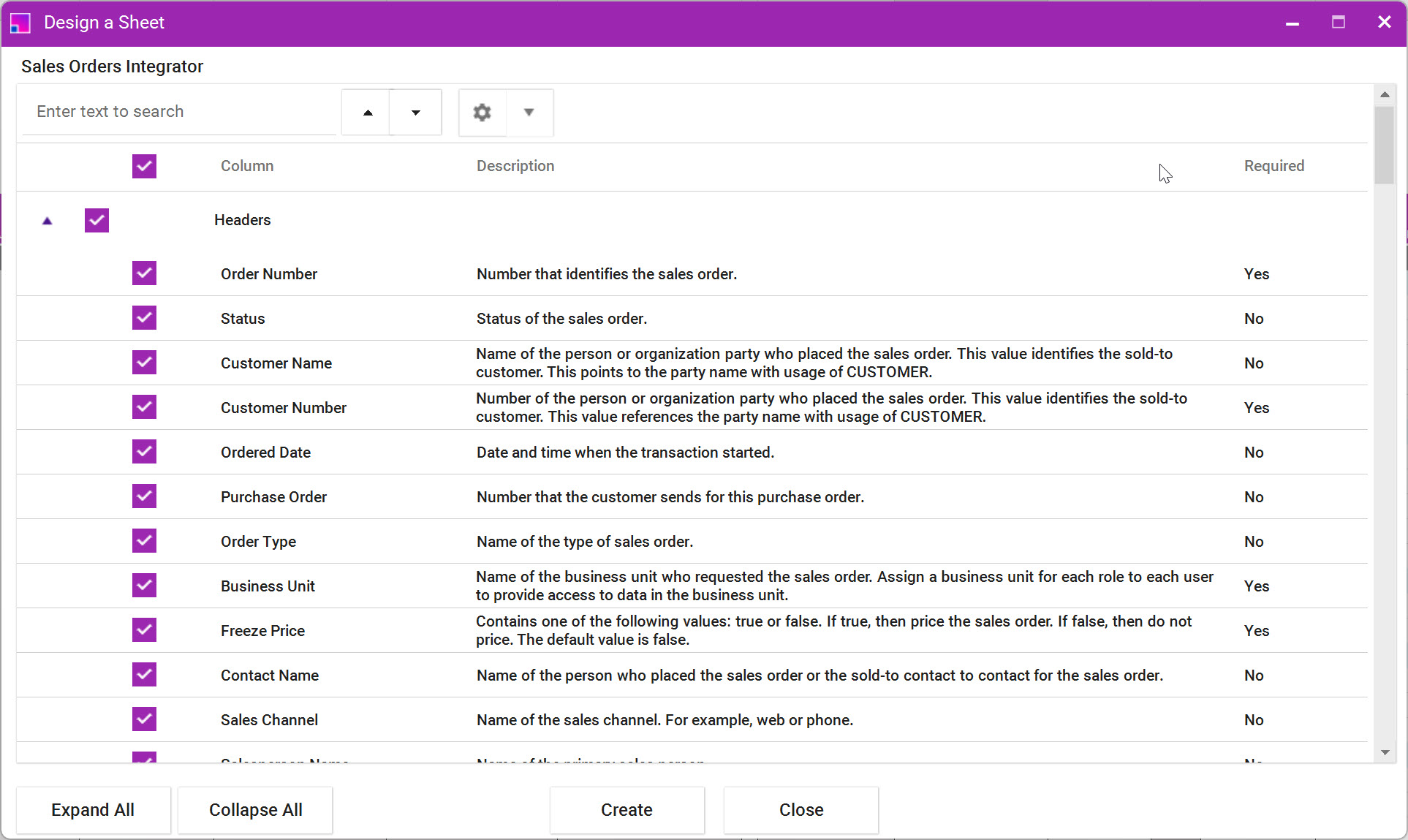
When generating a new sheet to create Sales Orders, it is recommended to customize the layout to display only the required sections and columns, reducing complexity and making the sheet easier to use.
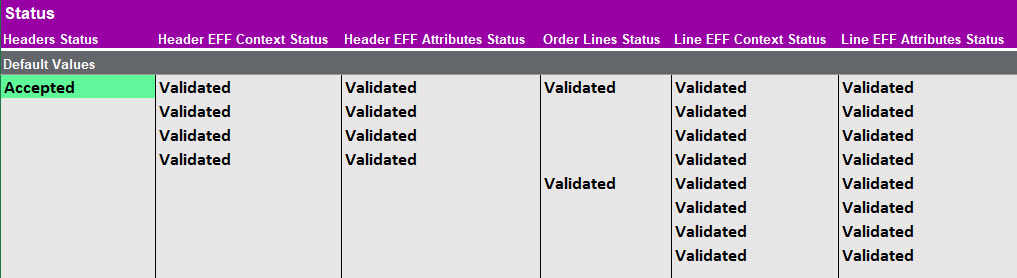
When Sales Orders are uploaded to Oracle, the 'Headers Status' displays 'Accepted' when there are no errors on the sheet.
Although the Integrator includes multiple sections, it is designed to return the Accepted status at the Header level only. Any section-specific validation errors are displayed directly within the relevant section where the error occurs.
Available sections in the Integrator:
-
Headers
-
Header Attachments
-
Header EFF Context
-
Header EFF Attributes
-
Order Lines
-
Line Attachments
-
Line EFF Context
-
Line EFF Attributes
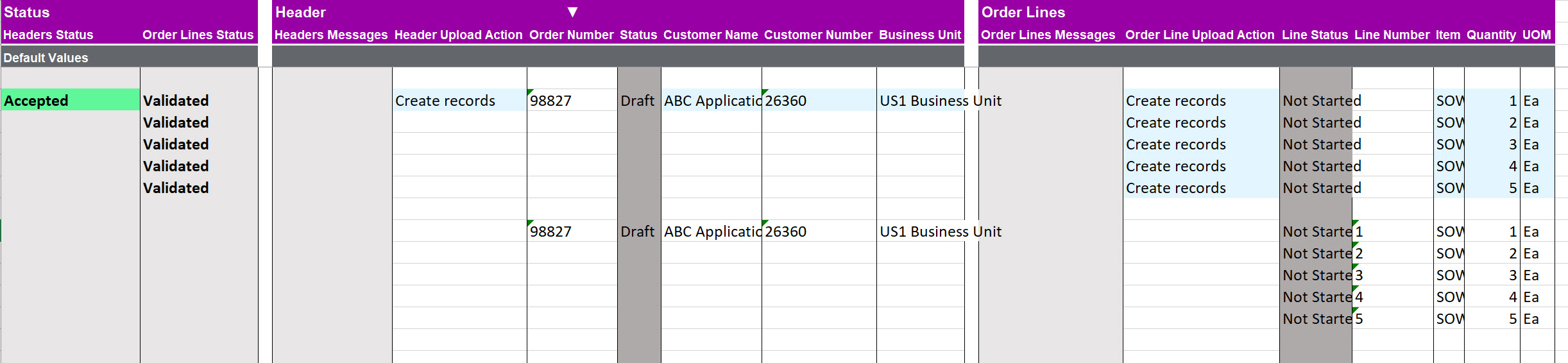
To create a new Sales Order, the ‘Header Upload Action’ column value must be Create or Create records. Refer to Upload Actions for more information about how they work.
The following fields are required to create a Sales Order at the Header level:
-
Customer Name (Customer Number must be selected if there are duplicate Customer Names)
-
Business Unit
The following fields are required to create a Sales Order Line:
-
Line Number
-
Item
-
Quantity
-
UOM (this will be defaulted for the item)
When a Sales Order is created successfully in Oracle, the Order Number will be returned on the sheet.

If values are not provided, default values are automatically populated for fields such as Ordered Date, Contact Name (based on the selected customer), Bill-to Customer, Ship-to Customer, and other relevant fields.
There are two methods for entering values: direct input on the sheet or via a Data Form. Each method has its own advantages:
Direct Input on the Sheet
-
You can manually enter values directly onto the sheet.
-
This method allows you to copy and paste values from a different source.
Note that when uploading, a validation process will run to ensure the correctness of all entered values.
Data Form
-
The Data Form provides an alternative way to enter values.
-
It allows you to search or select values from pre-defined List of Values.
-
This can be useful when you don’t know the exact value to enter on the sheet.
Bill-to Customer and Ship-to Customer
When creating a Sales Order, the Bill-to Customer and Ship-to Customer sections are automatically generated if values are not provided.
The default values are derived from the Customer Name selected at the Sales Order Header, including the associated address and contact details.
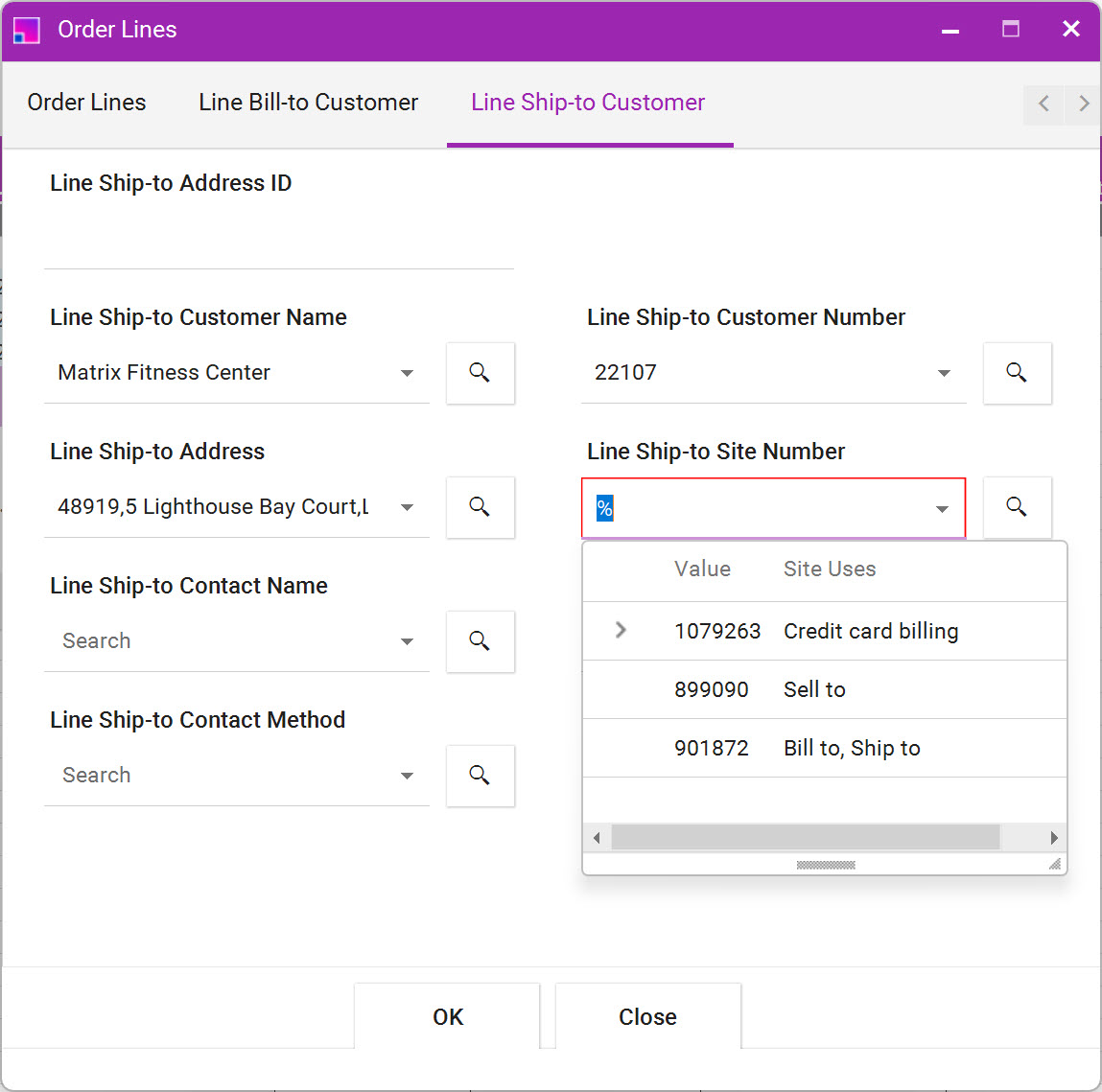
Ship-to Address
If there are multiple identical Ship-to Addresses, you will need to manually select the correct Ship-to Site Number. If there is only one address available, the Ship-to Site Number will default automatically.
Known API Issue
There is a known API issue where an error message may be returned if the customer contact method (for example, phone or email) is invalid or contains corrupted data. If this error occurs, ensure that the customer record is correctly configured in Oracle and that the contact methods (for example, phone or email) are valid and do not contain duplicate or corrupted entries.
If the error persists after verifying the setup, a Service Request (SR) will need to be logged with Oracle. Contact More4apps for assistance with raising the Service Request if required.
| When creating a Sales Order, ensure that the following fields are cleared (left blank) in both the Header and Lines sections: |
-
Bill-to Address ID
-
Ship-to Address ID
Creating Attachments
The Sales Orders Integrator support attachments at both the Header and Lines level. Refer to the Attachments documentation for more information about them.

Creating Additional Information (EFFs)
Additional Information (Extensible Flexfields – EFFs) can be created against both Sales Order Header and Line records using the integrator.
However, updates to existing EFF values are not supported. Downloading existing EFF values is also not supported.
Limitation
If Additional Information already exists against the Header or Lines and you attempt to create the same EFFs again, the web service will ignore the new values. No error message is returned in this scenario. Contact More4apps for assistance with raising the Service Request for this issue, if required.
Example of EFFs against a Sales Order Header:

Example of EFFs against a Sale Order Line:

Creating Lines
When creating a new Sales Order with lines, ensure the following requirements are met:
Upload Action: The Upload Action must be set to Create (or Create Records) for both the Header and Lines sections.
Warehouse and Supplier Name: If a Warehouse is provided on the line, a Supplier Name must not be entered. These fields are mutually exclusive and cannot be used together.
Unit of Measure: The Unit of Measure (UOM) is automatically defaulted based on the selected Item.
Line Number: A Line Number must not be provided when creating new Sales Order lines as these are generated automatically by the integrator. If you enter line numbers, you will get an error.
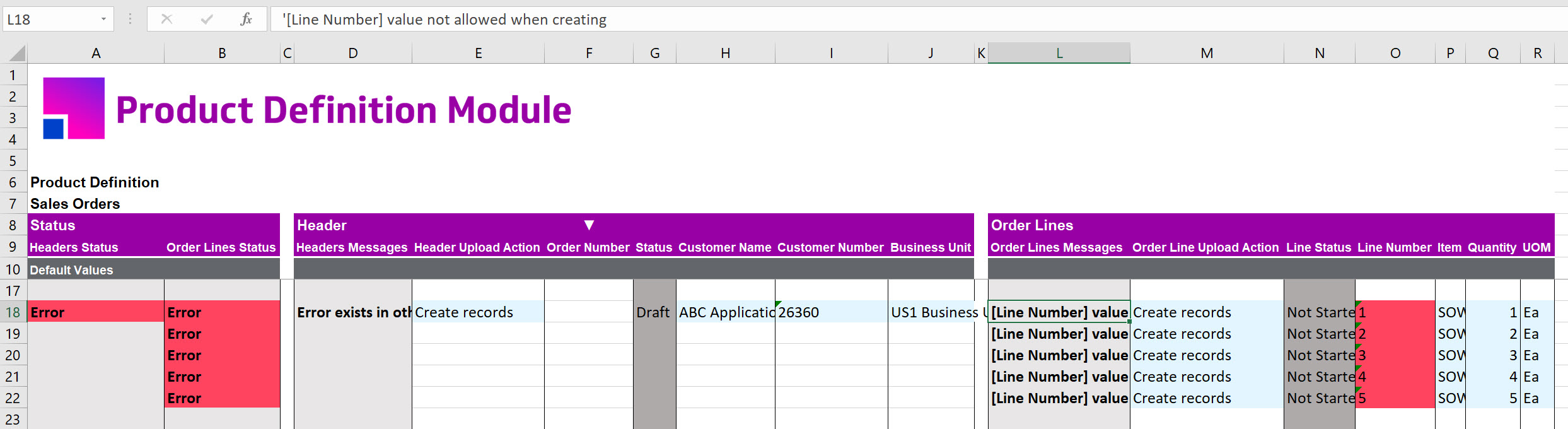
Download the order on the sheet to see the Line Numbers created against the order lines. You must have the Line Number column on the sheet to update.