Downloading
The Download features allow you to retrieve and view Oracle Cloud data directly within the workbook. Downloads can be performed in two ways:
-
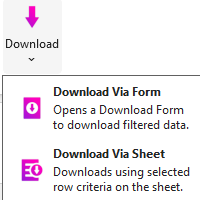
Download via Form – enter criteria using a predefined form.
-
Download via Sheet – supply criteria directly in the worksheet.
| Some Integrators provide more than one download type (known as Download Sources). For details, refer to Download Sources. |
Download via Form
The Download Form provides a structured interface for entering search criteria.
Follow the steps below to download using the form:
-
Click Download > Download via Form from the Add-in ribbon.
-
The Download Form for the active Integrator will appear.
If a Download Source selection form appears first, see Download Sources. 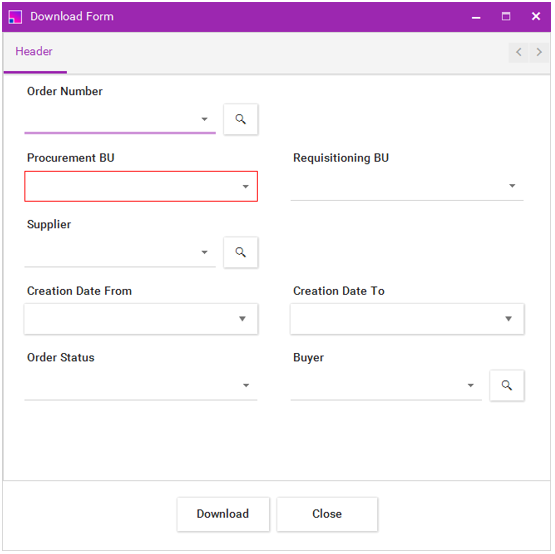
-
Enter criteria into the form.
-
At least one criterion is required.
-
Some fields allow free-text entry; others provide LOV dropdowns.
-
-
After entering all required criteria, click Download.
-
The resulting records will be written to the sheet.
Download via Sheet
Download criteria can also be entered directly into the worksheet. Searchable columns are marked with an arrow (▼) above the column name.
| Some Integrators contain additional download options where searchable columns do not appear. For these, see Download Sources. |
Using Criteria in the Sheet
Criteria may include wildcards (%) to broaden searches:
| Criteria Example | Purpose |
|---|---|
AS1000 |
Searches for records where the field equals AS1000. |
AS1% |
Searches for records where the field starts with AS1. |
%1000 |
Searches for records where the field ends with 1000. |
%S10% |
Searches for records where the field contains S10. |
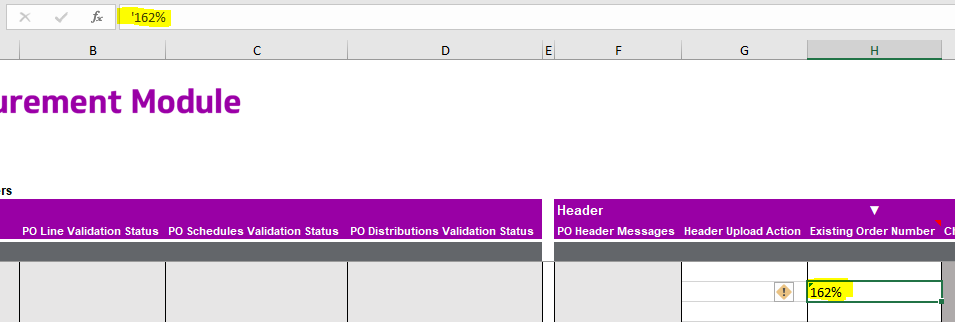
Excel formatting can interfere with wildcard searches on numbers.
You must prefix numeric criteria with a single quote (').
Example: '162% returns records starting with 162.
|
Download Steps (Sheet)
-
Enter criteria into one or more searchable (▼) columns.
-
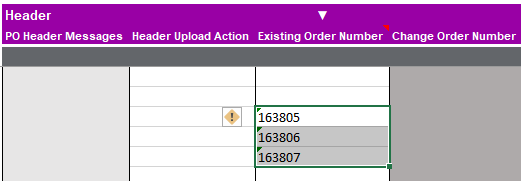
Using the cursor, select one or multiple rows that contain criteria.
-
Click Download in the Add-in ribbon.
-
Select Download via Sheet.
If a Download Source form opens, see Download Sources. -
Matching records will be printed to the sheet. All lower-level rows belonging to each record will be included.

| If no data returns, try reducing or adjusting the criteria. |
Download Sources
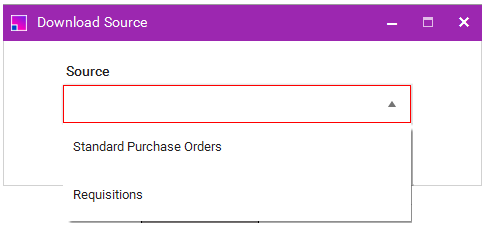
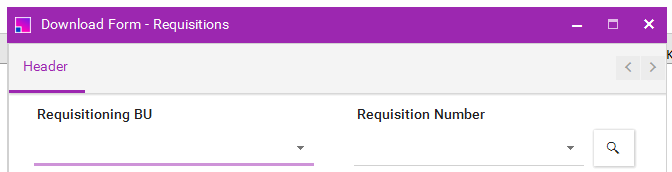
Some Integrators support multiple download types. When more than one source exists, a Download Source selection window appears before downloading.