Create Inventory Transactions
To create a new inventory transaction, the Upload Action column value must be set to Create or Create records. This instructs the Integrator to post a new transaction to Oracle ERP Cloud when the upload is initiated. Refer to Upload Actions for more information about how they work.
Before creating new inventory transactions, configure the required settings. Refer to Settings Form for more information.
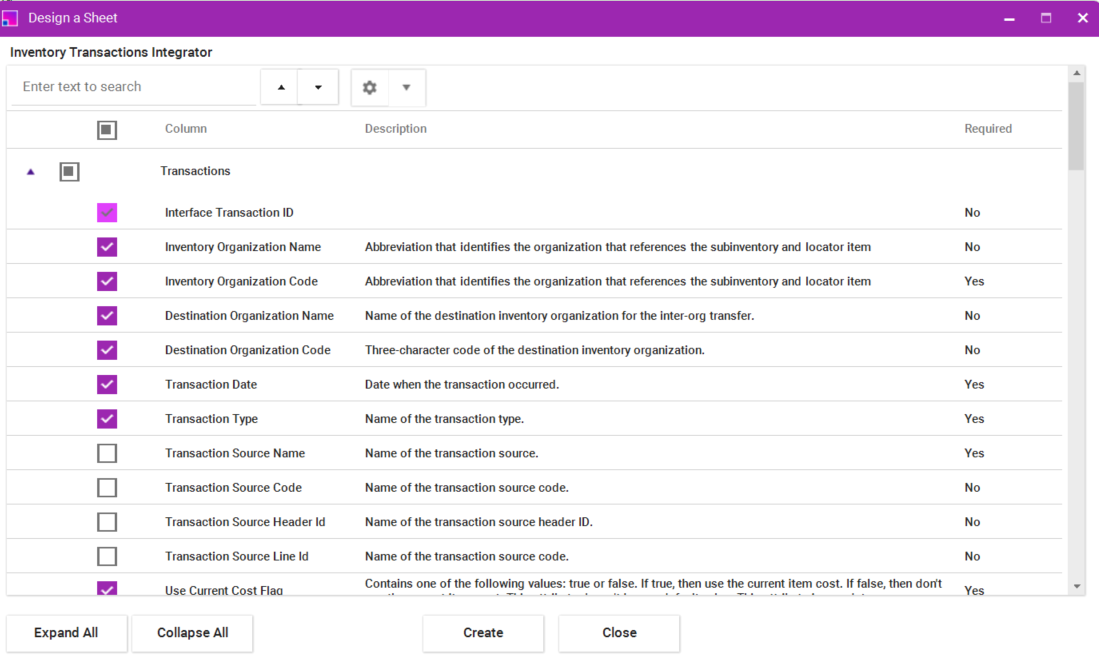
When generating a new sheet to create inventory transactions, it is recommended to customise the layout to display only the required sections and columns. This reduces complexity and makes the sheet easier to work with.
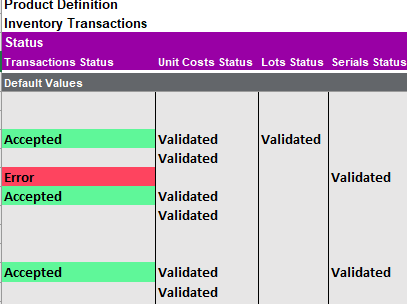
When inventory transactions are uploaded to Oracle, the Transaction Status column displays Accepted when the upload completes without errors.
The integrator is designed to return the Accepted status at the transaction header level only. Any section-specific validation errors are displayed directly within the relevant section where the error occurs.
The following sections are available in the integrator:
-
Transactions
-
Transactions DFF
-
Unit Costs
-
Project Details
-
Lots
-
Lots Attribute DFF
-
Serials
-
Serial Attribute DFF
-
Serial Standard DFF
-
Transaction Attachments
-
On-Hand Quantities
Input Method
There are two methods for entering values: direct input on the sheet or via a Data Form. Each method has its own advantages.
-
Direct Input on the Sheet
-
You can manually enter values directly onto the sheet.
-
This method allows you to copy and paste values from an external source such as a spreadsheet or report
-
When uploading, a validation process will run automatically to verify the correctness of all entered values before submission to Oracle.
-
-
Data Entry Form
-
The Data Entry Form provides an alternative and guided way to enter transaction values.
-
It allows you to search or select values from pre-defined Lists of Values (LOVs), reducing the chance of invalid data entry.
-
This is particularly useful when you are unsure of the exact value required in a given field.
-
Mandatory Fields
The following fields are mandatory for all transaction types. The Integrator validates these against Oracle’s inventory rules before submission to ensure each transaction is actionable.
Field |
Description |
Organization |
The Inventory Organization in which the transaction will be recorded. This is a mandatory identifier for all transaction types. |
Transaction Date |
The date on which the transaction is to be recorded in Oracle ERP Cloud. |
Transaction Type |
The type of inventory transaction to be performed (e.g., Miscellaneous Receipt, Account Alias Issue). |
Use Current Cost Flag |
Currently only supports 'Yes' flag. |
Item Number |
A valid, active item that is already assigned to the specified Organization. |
UOM |
The Unit of Measure for the transaction quantity. Must match a UOM assigned to the item. |
Quantity |
The quantity of the item being transacted. Must be a positive value for receipts into inventory and a negative value for issues from inventory. |
Subinventory |
The source or destination subinventory for the transaction. |
Transaction Source Code |
A free‑text code that identifies the external system or process that originated the transaction. The default value is More4apps_INV_TXN_INTEGRATOR, and it can be overwritten. |
Transaction Source Header Id |
A numeric identifier that links the transaction to the header‑level record in the originating source system. A random sequence number is defaulted, but this value can be overwritten. |
Transaction Source Line Id |
A numeric identifier that links the transaction to a specific line within the originating source header. A random sequence number is defaulted, but this value can be overwritten. |
Transaction-Specific Fields
In addition to the mandatory fields above, certain transaction types require additional information as described below.
Transaction Type |
Additional Required Fields |
Miscellaneous Receipt |
None beyond the mandatory fields listed above. |
Miscellaneous Issue |
None beyond the mandatory fields listed above. |
Account Alias Receipt |
Account Alias: A predefined alias mapped to a general ledger account. |
Account Alias Issue |
Account Alias: A predefined alias mapped to a general ledger account. |
Account Issue |
Distribution Account: The specific general ledger account to which the inventory value will be charged. |
Account Receipt |
Distribution Account: The specific general ledger account from which the inventory value will be credited. |
Project Material Issue |
Project Number, Task Number: The project and associated task to which the material cost will be allocated. |
Project Material Receipt |
Project Number, Task Number: The project and associated task to which the material cost will be allocated. |
Subinventory Transfer |
The destination subinventory within the same organization. Required. If the destination subinventory is locator-controlled, a Destination Locator must also be provided. |
Direct Organization Transfer |
The destination inventory organization. Required. Destination Subinventory: Required — goods move immediately to the destination. Destination Locator: Required if destination subinventory is locator-controlled. |
Intransit Shipment |
The Destination inventory organization. Required. Shipment Number: Unique identifier for the intransit shipment. Required. Expected Receipt Date: The expected arrival date at the destination. Required; must be on or after the Transaction Date. Destination Subinventory and Distination Locator: Optional at shipment time — resolved at receipt. |
Note: The Locator field is required only if the selected Subinventory has Locator Control enabled (e.g., Row-Rack-Bin). If the subinventory is not locator-controlled, this field must be left blank.
Project Details
The Project Details section is applicable to the Project Material Issue/receipt transaction type only. These fields link the inventory issue to a specific project and task in Oracle Project Costing, allowing the material cost to be allocated accordingly.
Field |
Required |
Description |
Project Number |
Yes |
The number of the project to which the material cost will be charged. The LOV displays active, open projects from Oracle Project Costing. The project must be open and active before it can be selected. |
Task Number |
Yes |
The task within the selected project to which the material cost will be allocated. The LOV is dependent on the Project Number — it will only display tasks that belong to the selected project. The task must be active and open |
Expenditure Type |
No |
The expenditure type classifies the nature of the cost being charged to the project. May be required depending on your Oracle Project Costing configuration. |
Expenditure Organization |
No |
The organization incurring the project cost. Defaults to the inventory organization but can be overridden if required by the project setup. |

Lot Details
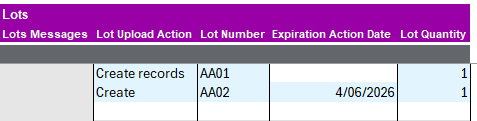
The Lot Details section is applicable only when the item being transacted is Lot Controlled (Lot Control Code = Full Control in the item master). When a lot-controlled item is selected, the Lot fields become available and must be completed before the transaction can be uploaded. For non-lot-controlled items, these fields must be left blank.
Field |
Required |
Description |
Lot Number* |
Yes |
For issues: the existing lot number to be transacted. The LOV displays valid lots with on-hand quantity in the selected subinventory. |
Lot Quantity* |
Yes |
TThe quantity to be transacted for this lot. The sum of all lot quantities must equal the Transaction Quantity on the main line. Multiple lot rows can be used to split a transaction across more than one lot. |
Lot Expiration Date |
No |
Applicable to receipt transactions only. The expiration date assigned to the new lot being received. Required if the item has lot shelf-life control enabled. |
Origination Date |
No |
The date the lot was created or manufactured. Defaults to the system date when the lot is created. |
Maturity Date |
No |
The date the lot reaches full maturity and is ready for use. Automatically calculated as Origination Date plus the Maturity Days defined on the item master. |
Note: * Required for lot-controlled items only. The Lot section is not displayed and must not be completed for items that are not lot-controlled. A single transaction line can reference multiple lots by adding additional lot rows beneath the main transaction line.
Serial Details
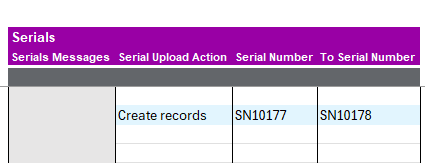
The Serial Details section is applicable only when the item being transacted is Serial Controlled (Serial Number Control = At Receipt or At Sales Order Issue in the item master). When a serial-controlled item is selected, a serial number must be provided for every unit being transacted. For non-serial-controlled items, these fields must be left blank.
Field |
Required |
Description |
Serial Number* |
Yes |
One serial number per row. Start of Serial Number |
Serial Number To |
Yes |
Ending Serial number |
Note: * Required for serial-controlled items only. One serial number row is required per unit being transacted — the number of serial rows must equal the Transaction Quantity. For items that are both lot-controlled and serial-controlled, serial numbers are entered as child rows beneath the lot row
Upload Results
The way results are returned to the sheet after a Create upload depends on the Process Option configured in the Settings Form.
Process Option |
Behaviour After Upload |
Online Processing |
Oracle processes the transaction immediately. Results are written back to the sheet in real time upon completion of the upload. If a transaction fails validation or is rejected by Oracle, the error message is displayed directly on the relevant row. |
Background Processing |
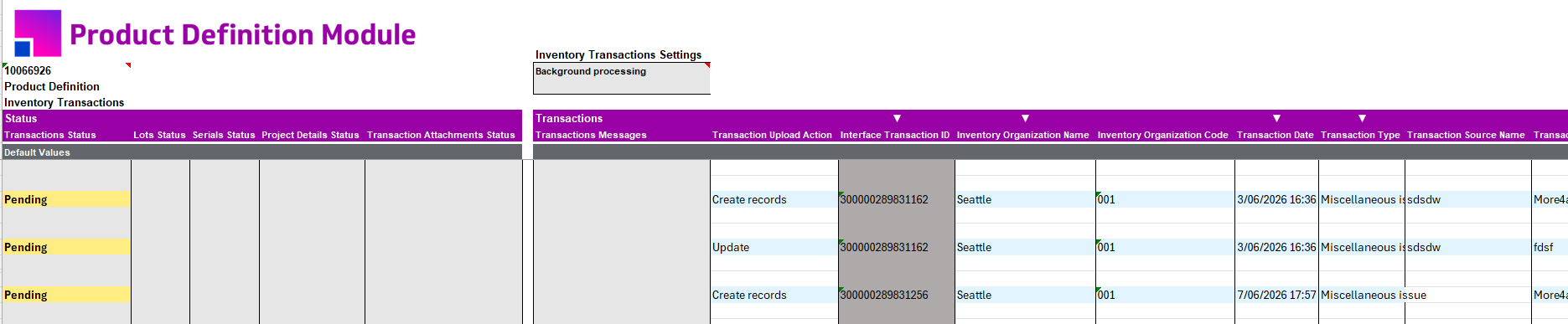
Transactions are loaded into the Oracle interface tables and wait for a concurrent program - “Manage Inventory Transactions” to be submitted to process them. Use the Scheduled Processing options on the More4apps ribbon to manage and monitor the concurrent program. |
Scheduled Processing (Background Processing Only)
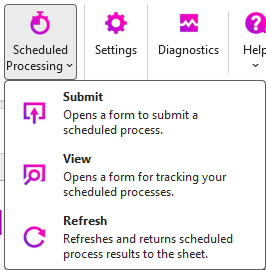
When Background Processing is active, use the Scheduled Processing option on the More4apps ribbon to submit and monitor the Oracle concurrent program. Three actions are available:
Action |
Description |
Submit |
Submits the Oracle concurrent program -“Manage Inventory Transactions” to process the transactions that have been loaded into the interface tables. This step must be completed after uploading before Oracle will begin processing the records |
View |
Opens the Oracle concurrent program monitor so you can check the current status of the “Manage Inventory Transactions” submitted program (e.g., Pending, Running, Completed, or Error). Use this to confirm whether processing has finished before refreshing the sheet. |
Refresh |
Updates the sheet with the final processing status once the concurrent program has completed. Successfully processed transactions are marked accordingly. If a transaction encountered an error during processing, the error detail is written back to the relevant row in the sheet. |
Note: Always use Refresh after the concurrent program has completed to ensure the sheet reflects the final outcome. Until Refresh is run, the sheet will not show whether transactions were successfully processed or encountered errors.
- Warning
-
Submit processes all pending interface transactions
The Manage Inventory Transactions concurrent program has no parameters. Clicking Submit in the More4apps ribbon fires the process with no filtering — it will pick up and process every pending transaction across all organizations sitting in the interface table at that moment, not just the records loaded by the current user. Coordinate with other users before submitting to avoid unintentionally processing another user’s incomplete or unvalidated data.