Download Item Transaction Defaults
There are two ways to download transaction defaults from Oracle using the Integrator. More information about downloading can be found here.
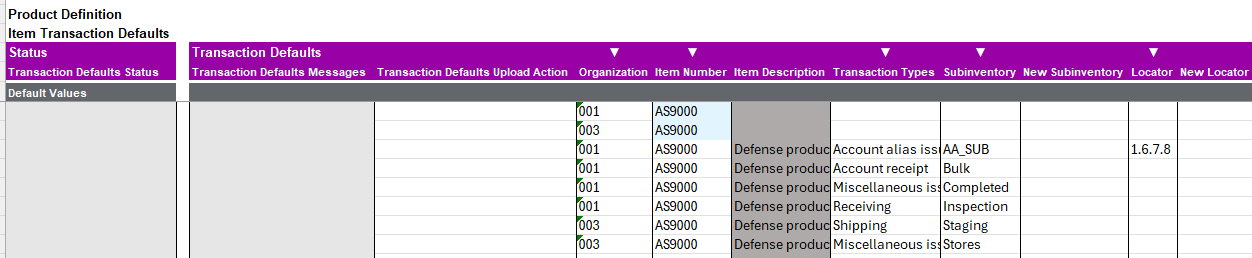
Download via Sheet
When the option to ‘Download via Sheet’ is selected, the Integrator will use the data entered in the columns that allow sheet values to be used as the download criteria to download data to the sheet. These columns are indicated by a white triangle above the column name.
Available Download Filters: You can use any combination of the following fields to refine your download:
Organization: Limits the download to specific Inventory Organizations.
Item Number: Downloads defaults for a specific item or range of items.
Transaction Type: Filters by scope
Subinventory: Useful for seeing all items currently defaulted to a specific zone.
Locator: Further narrows the search to a specific bin or row.
Download via Form
The Download Form will be displayed when the ‘Download via Form’ is selected. Here, you can enter values into the available fields to set the download criteria. You can search using a ‘%’ to see the available list of values to search. Click the ‘Download’ button to download data onto the sheet.
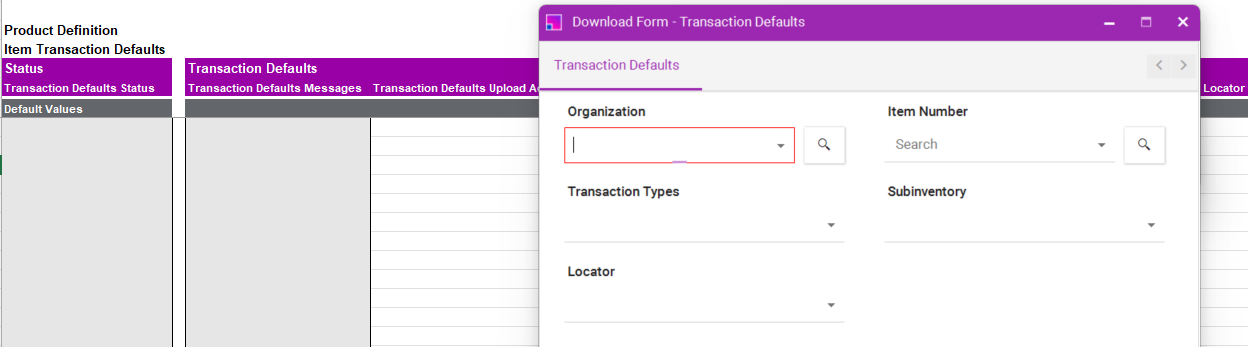
Example use of a Download Form to filter the download criteria
If you have a transaction defaults and you apply a filter by item number on the Download Form, the Integrator will only download transaction defaults where the transaction defaults item number matches the filter criteria. This means that only the transaction defaults associated with the specified transaction defaults item number will be included in the download, excluding any transaction defaults that do not match the filter. This functionality ensures that the downloaded data is relevant and specific to the transaction defaults item filter applied.
Note: The web service requires Organization as a mandatory filter for Download via Sheet and for Download via Form.