Create Banks and Branches
To create new banks, branches, or addresses, you must enter the correct action in your spreadsheet so the integrator knows how to process the row.
-
Locate the Upload Action Column: Navigate to the section where you want to create a record and find its corresponding action column. The integrator includes the following action columns:
-
Banks Upload Action
-
Bank Addresses Upload Action
-
Branches Upload Action
-
Branch Addresses Upload Action
-
-
Set the Action to Create or Create records: In the Upload Action column, click on 'Data Forms' to open the list of values (LOV) or type the action manually.
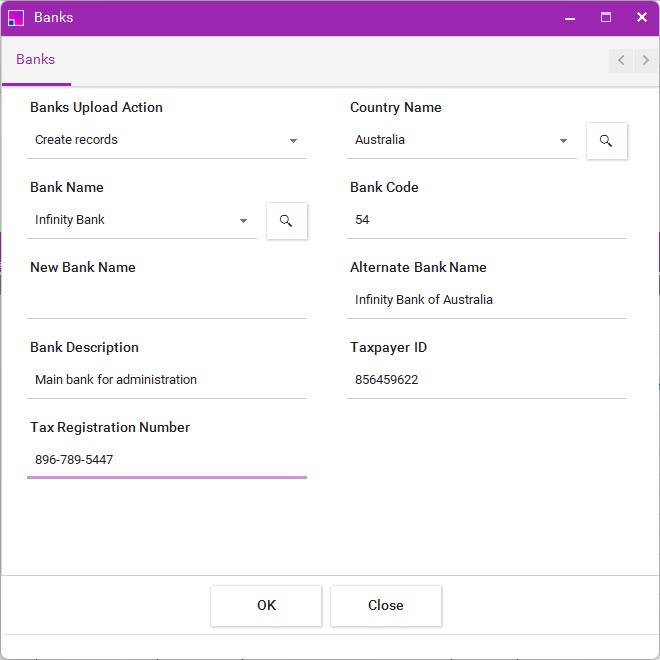
-
Populate Data Fields: Enter the required data for your new banks, branches, or addresses (e.g., routing numbers, standard names, and physical locations). Click on 'Data Forms' to open the list of values (LOV) or enter the data manually.
-
Upload to Oracle: Once your sheet is populated, use the standard upload ribbon command to validate the data and upload your new records to Oracle ERP Cloud.
When the data is uploaded to Oracle, the status columns for the sections uploaded will be set to 'Accepted'.

The following columns are required on the sheet to Create:
Banks
The following columns are required to be on the sheet to Create the Banks section.
-
Country Name
-
Bank Name