Process Customer Tax Information
We have implemented several Tax sections into the Customers Integrator. Please see below for further details.
Overview of Tax Fields
The current version of the Customers Integrator includes the following Tax sections at both Customer and Site levels:
-
Transaction Tax
-
Tax Registration Header
-
Tax Registrations
-
Taxpayer Identifiers
-
Tax Exemptions
-
Lower Level Tax Information (2 read-only columns relating to Tax Exemptions)
-
Fiscal Classifications
These sections align with the Customer and Site Tax sections available in the Oracle UI.
Additionally, the following sections are also present:
-
Customer Tax Profile
-
Site Tax Profile
Each of these Tax Profile sections comprises only 2 columns: Customer/Site Tax Profile Upload Action and Cust/Site Tax Profile Id. These fields are processed via the partyTaxProfiles webservice, as are the fields under the Customer/Site Transaction Tax and Customer/Site Tax Registration Header sections. Therefore, the Upload Action entered into the Customer/Site Tax Profile Upload Action field controls the processing of the fields in the Transaction Tax and Tax Registration Header sections. E.g.:

The Customer/Site Tax Profile sections also act as ‘parent’ records for the other Tax sections at Customer and Site levels, i.e.:
-
Tax Registrations
-
Taxpayer Identifiers
-
Tax Exemptions
-
Fiscal Classifications
This structure is necessary as the Cust/Site Tax Profile Id is required when uploading data from the above Tax sections.
For example, if you are creating a new Customer at the same time as creating Customer Tax Registrations information, there will be no existing Cust Tax Profile Id for the Customer. Therefore, you must enter ‘Create’ into both the Customer Tax Profile Upload Action column and the Customer Tax Registration Upload Action column when creating the record.

In the above scenario, the upload process will create the required Cust Tax Profile Id and the Cust Tax Registration Id:

The same process should be applied to the Site Tax Profile Id when creating new Site Tax information.
It is possible to create a Site Tax Profile Id without having a Customer Tax Profile Id.
If the ‘Create’ value is missing from the appropriate Tax Profile Upload Action column during the creation process, you will receive a message similar to the following:
Section (Site Taxpayer Identifier) record in row (xx) is orphaned. Possible causes include a missing parent record or blank row gap(s) above the current record.
You will also get the following message if you try to open the Data Form for a Tax section when there is no ‘Create’ value in the Customer Tax Profile Upload Action field:

You can ‘Create’ data in multiple Tax sections with one upload using the above format, i.e. enter ‘Create’/’Create records’ into the Upload Action column for the Customer Tax Profile section and each Tax subsection.
Once the Cust Tax Profile Id has been created, if you subsequently wish to create Tax data in other sections of the Customer record or update existing records, download the Customer into the sheet to populate the Cust Tax Profile Id value and enter the appropriate ‘Upload Action’ into the Tax subsection:

Create / update Site level Tax information in the same way, using the Site Tax Profile Upload Action column instead of the Customer Tax Profile Upload Action column:

Tax Exemptions
This section is less straightforward than the other Tax sections as, during the creation of Tax Exemptions, the behaviour of the Oracle UI fields changes when specific values are entered into the UI form, i.e.:
-
The fields available for entry change depending on whether the ‘Letter of Intent’ flag is ticked or not
-
Specific fields are available for particular values entered into the ‘Exempt Status’ field
-
2 read-only fields appear when the ‘Apply to Lower Levels’ box is ticked
We have designed this section of the Integrator to mirror Oracle UI form’s behaviour, as much as possible, when creating Tax Exemptions: the following tables indicate how the Integrator treats each of the Tax Exemption fields. For further guidance, we have also added Comments against the Integrator’s column headings, to indicate how/when the fields should be populated.
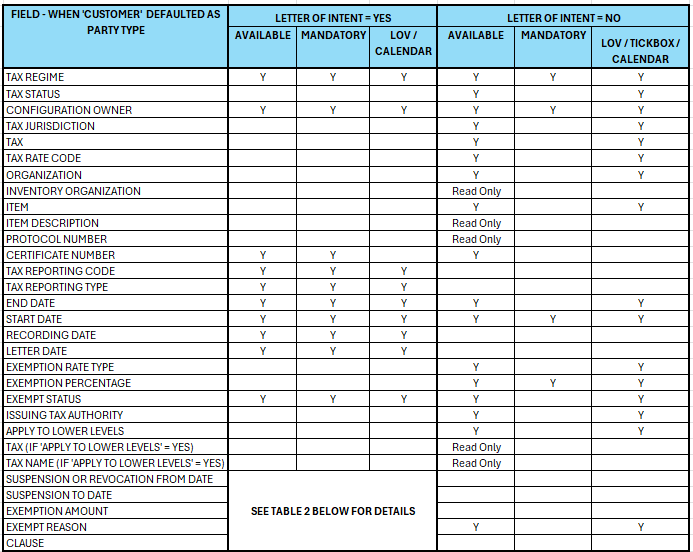

| The table above shows that, when the ‘Letter of Intent’ is ‘Yes’ when creating a Tax Exemption, the Exemption Rate Type field is not available for data entry. However, the UI will default a value into both this field and the Exemption Percentage field during the creation process. In our specific instance, those default values are ‘Special rate’ and ‘0’, respectively. |
However, when creating an identical Tax Exemption record via the webservice, the defaults are ‘Discount or surcharge’ and ‘0’: these values cannot be overwritten.
If you try to upload any other value in the Exemption Rate Type field in this situation, you will receive the following error message:
API Error: You must provide a valid value for the ExemptionTypeCode attribute. (ZX-885076) [ZX:::ZX_INVALID_VALUE] [1 Batched Customer Tax Exemptions(s)]
You can then either update the value in the Exemption Rate Type field to ‘Discount or surcharge’ or leave the field blank and allow the value to default.
Similarly, the Exemption Percentage field should either be blank or should contain ‘0’ when creating a new Tax Exemption.
When the ‘Letter of Intent’ field is blank or ‘No’, you can upload any value from the Exemption Rate Type field’s LOV and enter any value in the Exemption Percentage field.
If you try to Update the values in the Exemption Rate Type and Exemption Percentage fields, you will not encounter any errors but the entered values will not be uploaded as the fields are not updatable.
Another anomaly relates to the updating of the Exempt Status 'Rejected' for a Tax Exemption record where the Letter of Intent is set to Yes. In Oracle UI, once a Tax Exemption record is assigned the 'Rejected' Status, it cannot be further updated. Due to restrictions of the API, we are not able to incorporate this same restriction into the Integrator. We have raised an SR with Oracle for this API issue.
| If the above conflicts with your usage of the Tax Exemptions form in the UI, please contact us and provide details of how you use Tax Exemptions. We can then investigate further and address that issue. You can raise a Case on our website here: https://community.more4apps.com/s/erp-cloud-contact-support/ |
Tax-related Id Columns
As discussed above, there are several Id columns in the Customers Integrator sheet: we use most of them to Identify records when uploading or updating data. If you would prefer not to see these columns then you can ‘Hide’ them on your sheet.
| Do NOT delete Id columns from the sheet or delete the data in these Id columns when processing existing data as the upload will fail. |
However, if you are downloading existing records to use as a template when creating new records, all of the Ids must be cleared from the Id columns before creating the new records.
A possible exception to the above is the Integrator’s Cust Tax Exemption Configuration Id column. It is possible for there to be duplicate values in the LOV for the ‘Configuration Owner’ field in the Create Tax Exemption form in the Oracle UI at both Customer and Site levels: these duplicates would usually be distinguishable by the description which is shown alongside the name in the Oracle LOV but there is no Description field in the UI for this value.
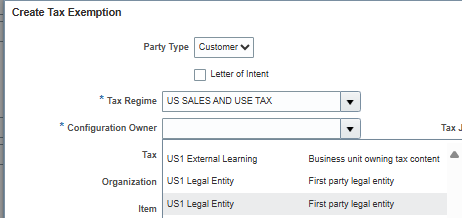
Having only the 'Cust Tax Exemption Configuration Owner’ and the 'Site Tax Exemption Configuration Owner’ columns available in the Integrator would not enable the webservice to distinguish between any such duplicate values. Therefore, we have added the ‘Cust Tax Exemption Configuration Id’ and ‘Site Tax Exemption Configuration Id’ columns into the Integrator: these fields must be populated at the appropriate level when creating Exemption records for a Configuration Owner where duplicate records exist.
The LOVs on these fields in the Integrator’s Data Form provide sufficient information for the correct value for the Configuration Owner Id to be selected:
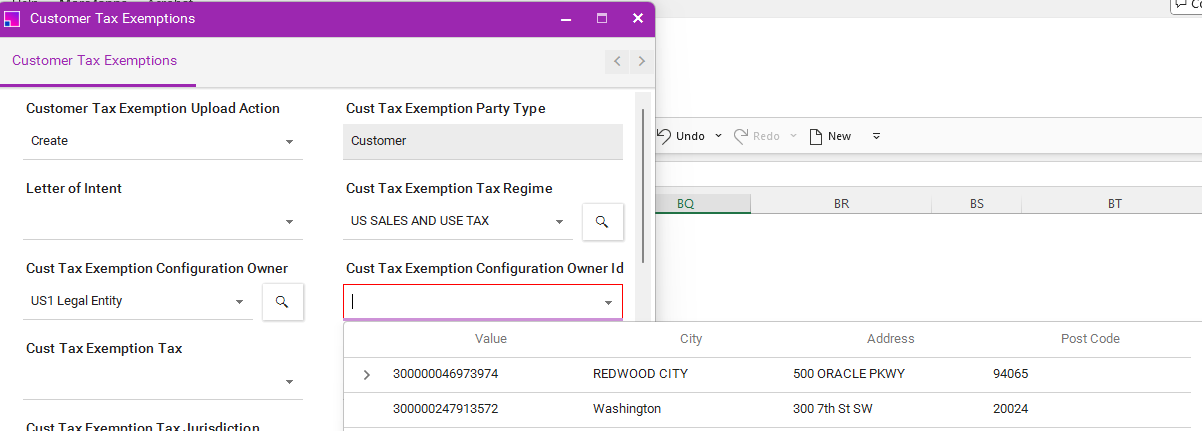

As this column is used to distinguish duplicate records, it should not be removed from the sheet when creating Tax Exemption records if you have duplicate Configuration Owner records.
If no such duplicates exist, you can safely remove the Configuration Owner Id column from the sheet.
If you do not have the Configuration Owner Id column in the sheet and you encounter the following error message, this means that you do have duplicate Configuration Owner values and you need to add the Id column into the sheet: 'Cust Tax Exemption Configuration Owner Id is required.’
Updating Tax Information
Only a limited number of fields can be updated via the Customers Integrator: this is in line with the functionality in the Oracle UI. Only those fields which can be updated are included in the ‘Update’ upload via the webservice: non-updatable fields are ignored when using the ‘Update’ Upload Action.
The updatable fields in the Tax Sections are as follows:
Tax Registration
All fields in this section can be updated except for the following:
-
Tax Regime Code
-
Validation Type
-
Validation Level
-
Duplicate Validation Level
-
Start Date
-
Registration Number
However, please see notes in the 'Issue with the 'Set as default registration' Flag' section below.
Tax Exemptions
The Exemption fields which can be updated are as follows:
-
Certificate Number
-
End Date
-
Exempt Status
-
Exempt Reason
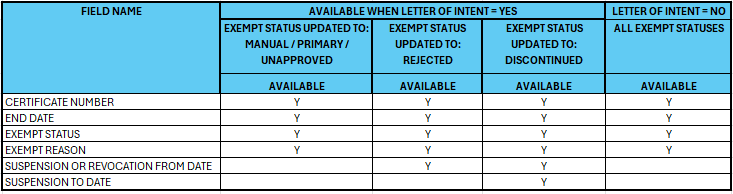
Please Note: When the Letter of Intent flag is set to Yes, additional date fields become available in the UI when updating the Exempt Status to ‘Discontinued’ or ‘Rejected’, i.e.:
-
Discontinued: ‘Suspension or Revocation From Date’ and ‘Suspension To Date’ become available
-
Rejected: ‘Suspension or Revocation From Date’ becomes available
Both of these date fields appear to be mandatory in the UI when updating the Exempt Status as per above.
The webservice does not enforce the entry of specific dates in this situation so the Customers Integrator is unable to validate the entry of data into these 2 date fields when the Exempt Status is being updated. The Integrator can, however, upload data into both of these date fields when updating the Exempt Status as above.
We have raised an SR with Oracle for this issue.
Issue with the ‘Set as default registration’ Flag
Please note the following scenario when updating a Tax Registration record which has the ‘Set as default registration’ flag set to ‘Yes’.
The three fields which are displayed in the Oracle UI at Tax Registration header level, i.e. Country, Registration Number and Tax Registration Type, may be configured against the Tax Regime Code: the Registration Details section stores the Tax Regime Code and other details, some of which are updatable.
In the Oracle UI, when one of the Registration Details fields is updated and the ‘Set as default registration’ flag for that record is set to ‘Yes’, Oracle will evaluate whether any of the 3 Tax Registration header fields should be updated with the information defined against the saved ‘Tax Regime Code’ record and will make such updates accordingly.
The webservice being used by the Customers Integrator to make Updates to Tax Registrations data does not always replicate the behaviour of the UI. From our experience of testing in Oracle Fusion, we have found that if you link the Customer Tax Registration to a Tax Regime that has the ‘Set as default registration’ flag = Yes, Fusion will sometimes null out the Country at the header level even though the Regime is country-specific.
Therefore, before you make updates to your Tax Registrations data, you need to thoroughly test your specific scenarios in a test database. You may consider testing whether uploading the Tax Registrations Details and the Tax Registrations Header in separate ‘Update’ uploads could potentially prevent this issue from occurring but you still need to fully test any process before running any such ‘Update’ uploads.