Creating Manual Payments
Become familiar with the current Integrator Limitations. These will be resolved over time as Oracle improves the underlying web services and we add functionality to this product.
To create a Manual Payment, ensure each section’s Upload Action is set to Create. Alternatively, set the Payments Upload Action to Create records, which will automatically default Create into the Invoices Upload Action column during validation.
Data must be populated in both the Payment Details and Invoices to Pay sections before uploading.
Only one Payment Details (header) record is required when multiple invoices are being paid by the same payment document.
Sheet Structure (Condensed) Examples

-
Paper Document 300020 is paying four invoices.
-
Paper Document 1136 pays two of the four invoices on the sheet, controlled by the Invoices Upload Action value.
-
Paper Documents 1137-1140 are paying one invoice each.
Foreign Currency Payments
The Integrator reflects the functionality in the Oracle UI as regards fields related to foreign currency transactions.
If you enter a Manual Payment for a foreign currency without entering any value in the Conversion Rate Type field, the Integrator will use the default in your UI and behave accordingly.
For example, if the Conversion Rate Type against Manual Payments created in your UI defaults to ‘Corporate’, this value will be populated into the Conversion Rate Type field. The Conversion Date (which is a read-only field) will default to the Payment Date so the upload process will then check for a Corporate Rate on that date. If none is found, an error message similar to the following will appear:
"API Error: The process {PROGRAM_NAME} failed because of an error. Contact your help desk.
  (FND-3) An application error has occurred. Your help desk can use the
              following information to obtain a more detailed description of
              this incident: Incident ID: 11, Server Domain: FADomain,
              Server Instance: ServiceServer_1, Application Name: ORA_FSCM_SERVICESAPP.
              FND:::FND_CMN_PROC_INTERNAL_ERROR [UploadManualPayments]"
You will then need to define a Corporate Rate for the Payment Currency for the appropriate Date.
If the Conversion Rate Type defaults to ‘User’, you need to enter a value in the Conversion Rate field.
Cross Currency Payments
The fields available in the Integrator for Cross Currency information, and their usage, are as follows:
-
Payment Details: Cross Currency Rate Type: This is mapped to the Cross Currency Rate Type field in the ‘Advanced’ section when entering the Manual Payment Header in Oracle UI. Values can be ‘Corporate’, ‘User’, etc.
-
Invoices To Pay: Cross Currency Rate: A value must be entered in this field if the option selected for the Cross Currency Rate Type field is ‘User’, as in the UI. If another, pre-defined Cross Currency Rate Type has been selected, e.g. Corporate, the Integrator will expect that the relevant Rate will have been defined in the UI so no value needs to be entered in the Integrator. You will receive an error message similar to the one detailed in the Foreign Currency Payments section above if no Rate has been defined for the entered Rate Type and Date.
-
Invoices To Pay: Amount Paid: This field differs from the UI data input field. In the Integrator, this is entered as the amount being paid against the invoice in the PAYMENT CURRENCY whereas the data entered into the UI ‘Amount to Pay’ field is denominated in the INVOICE CURRENCY.
| As values are always automatically defaulted in the UI for the Cross Currency Rate Type and Cross Currency Rate fields, these values will always be downloaded into the Integrator whether or not the Invoice &/or Payment is in a foreign currency. If you do not need these fields, they can be safely removed from the Integrator. |
Statuses and Messages
Successful uploads will display ‘Accepted’ in the Payments Status column and ‘Validated’ in the Invoices Validation Status column as both sections are uploaded in the same payload.
If the Integrator rejects an upload during pre-validation, the errors will be displayed in the appropriate section’s Status and Messages columns.
If the REST API rejects the uploaded data, the Payments Status column will display ‘Error’ and the Payments Messages column will contain the Oracle error prefixed with ‘API Error’, irrespective of which section the invalid data exists in.
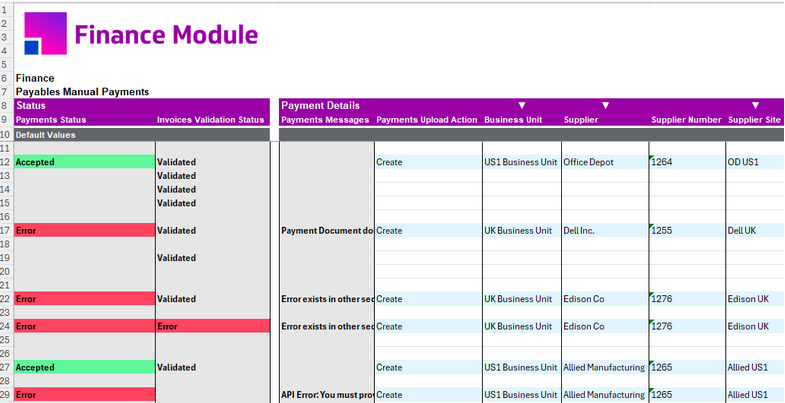
-
Row 12 successfully uploaded four invoices against the manual payment.
-
Row 17 failed pre-validation in the Payment Details section.
-
Row 22 failed pre-validation in the Invoices to Pay section.
-
Row 24 failed pre-validation in the Invoices to Pay section.
-
Row 27 successfully uploaded one invoice against the manual payment.
-
Row 29 was rejected by the REST API. The error message is written into the Payments Messages column.
Installment Number Defaulting Behaviour
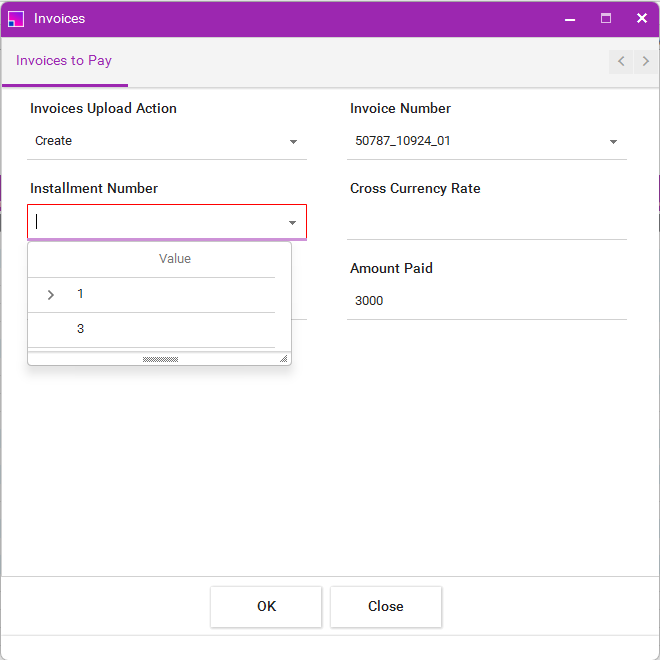
The Installment Number is a required field. If left blank, and only one open invoice installment exists, the Integrator will default the appropriate value during validation. If more than one open invoice installment exists, the user must populate the appropriate value.
The data entry form can be used to help search for the correct installment number:
Download Behaviour
After downloading Open Payables Invoices, information will have been populated into both sections of the Integrator. If more than one open invoice record is downloaded, the Payment Details information will be repeated.
If one payment will pay multiple invoices downloaded into the Invoices to Pay section, only the top row of Payment Details data should be retained in the worksheet. You can manually remove the duplicate header records or, alternatively, highlight all the duplicate records and use the Formatting > Normalize functionality on the Integrator’s ribbon. This will remove all but the first row of the highlighted header records.
If you will be creating one manual payment for each of the downloaded open invoices, you need to keep the additional header-level data in the sheet.
Populate the remaining Payment Details and Invoices to Pay fields to complete your data entry.
| All open invoices can remain in the worksheet without impacting the upload. Simply enter an Invoices Upload Action of ‘Create’ and other relevant payment information against the invoices you wish to pay. Records in this section that have not been assigned the 'Create' Upload Action will be ignored during validation and upload. |
Download Via Form - Best practice
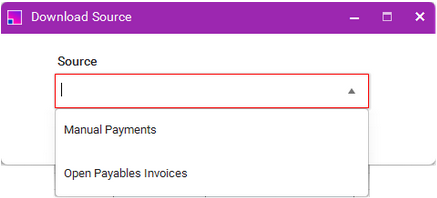
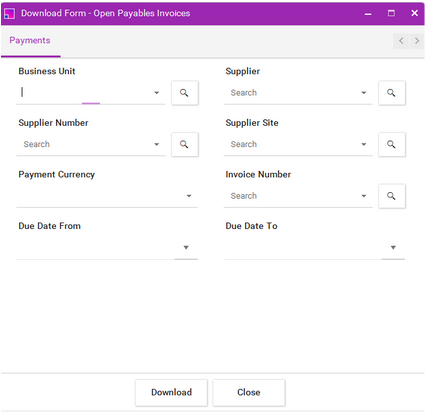
In an empty area of the worksheet, select Download Via Form from the ribbon and choose the Open Payables Invoices download source. Enter the appropriate filter criteria and click Download:
Download Via Sheet - Best practice
First, enter query criteria into the sheet in one or more of the columns indicated with a small white triangle in row 8 of the sheet, as shown below:

Do not enter additional Payment Details data yet.
Highlight the rows to be used as download criteria and select Download Via Sheet from the ribbon, choosing the Open Payables Invoices download source.
Populate the remaining Payment Details and Invoices to Pay fields to complete your data entry.