Generating a New Sheet
If your workbook does not already contain an Integrator worksheet, follow the steps below:
-
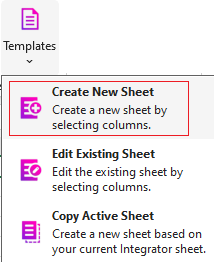
Select ‘Create New Sheet’ from the ribbon options:
-
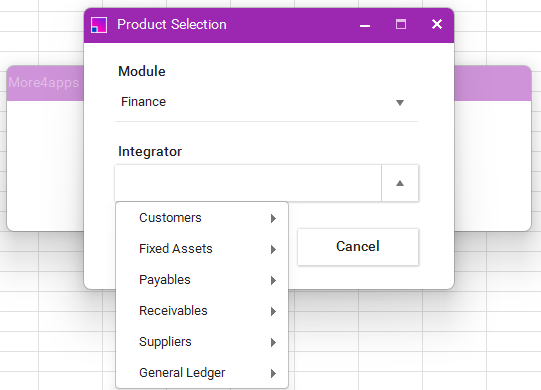
Select the Finance Module and then the appropriate Integrator.
-
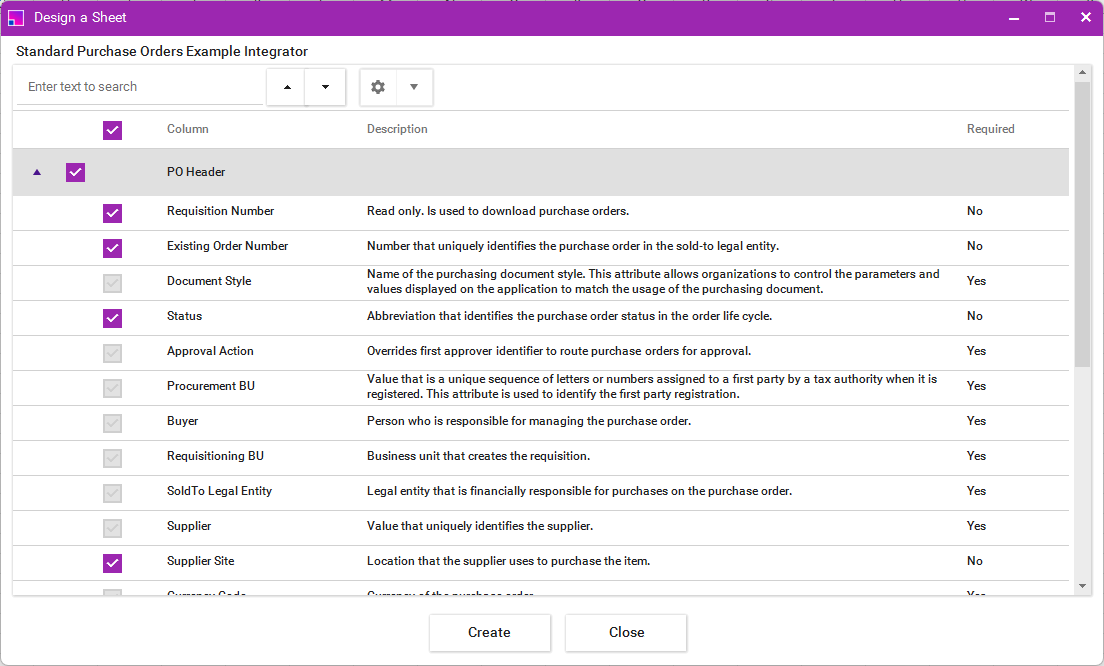
Using the form you can search, select and or deselect the fields you require then click ‘Create’. Below is an example of the Designer:
Notes
-
The designer by default will have all fields selected.
-
You can un-check the top checkbox to deselect or select all columns with a single click.
-
Un-checking the top check box will leave only required fields selected (greyed out check boxes).
-
Despite all required fields being checked in this scenario, you will still need to search and check the fields and/or sections you require to add them to your template.
The columns you have selected in the designer will be generated in the spreadsheet you now have in front of you.
| You can remove all columns to assist with performance. |