Upload Mass Additions
Uploading is the process where data has been prepared and is sent to Oracle ERP Cloud. In this Integrator we are only updating records in the interface tables.
Upload
The upload process attempts to load data into Oracle ERP Cloud. Use the following process:
-
Module validation verifies the data being uploaded.
-
Pending successful validation, the data is passed to Oracle ERP Cloud. (The upload for a record will cancel if validation fails).
(a) Pending successful module validation upload,Validatedstatus will be printed to the sheet. (OrPendingif an interface table is being used).
(b) Pending failed validation, anErrorstatus and messages will print to the sheet. -
Oracle webservice validation is run to further verify the data being uploaded is valid:
(a) Pending a successful upload and refresh anAcceptedstatus will be printed to the sheet.
(b) Pending a failed upload anErrorstatus and messages will print to the sheet.
The general process for Uploading can be found here.
Post Mass Additions
The 'Post Mass Additions' process facilitates the creation of Assets within the Oracle application by importing transactions from the interface table. It will select all relevant records in the Post queue.
The Scheduled Processing is broken into three steps: Submit, View and Refresh.
Submit
To use the 'Submit' functionality within the Asset Mass Additions Integrator, follow these instructions:
1. Click on the 'Scheduled Processing' icon.
2. Select 'Submit' from the dropdown menu.
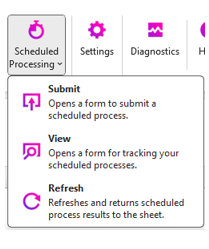
The ‘Post Mass Additions’ form will then open:
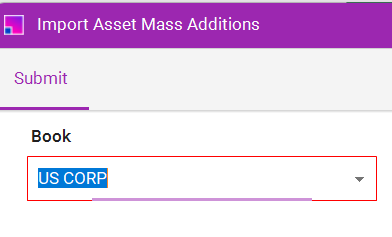
| Name | Description | Optional/Required |
|---|---|---|
Book |
Select the Book you wish to process. The LOV will only display Corporate Books that you have security access to, and only if there are transactions ready to Post. |
Required |
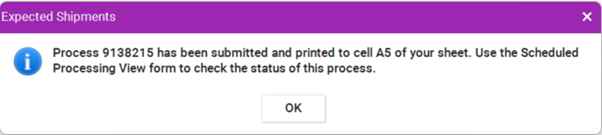
After clicking "Submit," a pop-up message will appear, confirming the import process has been submitted and providing a request ID.
This value is also copied to cell A5 on the Integrator.
View
To check the process status, use either the Scheduled Processing View in the UI or the View option.
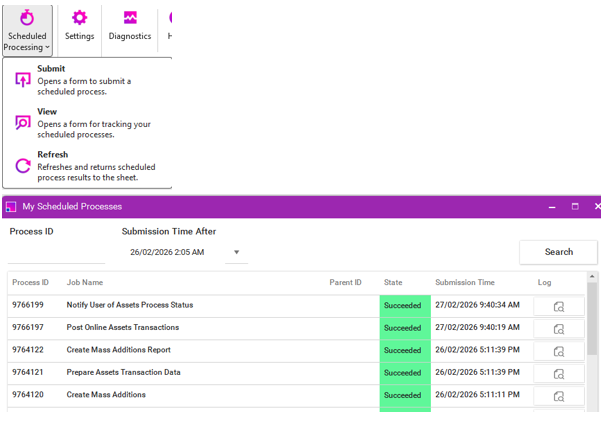
Once the main process (Create Mass Additions) has completed, successfully or in error, you can run the Refresh.
|
Because the Create Mass Additions process triggers other processes, you may need to clear the Process Id and press the Search button to refresh the list. |
Refresh
This process should return to the following to the Integrator sheet for all processed interface records:
-
Successful records
-
Status: Changes from
PendingtoAcceptedfor valid lines. -
Queue: Updates to
Postedonce the process completes. -
Asset Number: Automatically assigned to all successful records.
-
-
Unsuccessful records
-
Status: Changes from
PendingtoError. -
Queue: Updates to
Erroronce the process completes. -
Error Message: Message is returned. When an issue occurs, the API will return a single message. If there are multiple issues, only the first one will be reported. Any subsequent issues will be identified and reported during the next Post run.
-
Click on the Refresh icon from the ribbon to see the import results of the Post:
|
Please note that because success and error messaging are returned at the header level, the Assignment section will remain marked as |
Error Correction
Review error records and the associated error message on the sheet. Update Queue to Post and re-run the Post Mass Additions process.
If you wish to remove (or Clear) the value from the interface then you should use the [CLEAR] functionality. See Clearing Values.
Interface Cleanup
When you bring data into the Assets module from sources like Payables or external systems, it lands in the Mass Additions interface. If those lines are no longer needed, this job “Delete Mass Additions” removes them to keep the system tidy and efficient.
The job targets records in the FA_MASS_ADDITIONS table. Its primary functions include:
-
Removing Rejected Lines: It deletes records with a status of
DELETE. -
Cleaning Up Merged Records: It removes the "child" lines that were merged into a "parent" asset, as they are no longer needed as individual entries.
-
Purging Old Data: It clears out records that have already been successfully posted to the asset books (depending on your parameters) to prevent the interface table from becoming bloated.
This ESS job, Delete Mass Additions, is submitted from the UI and not the Integrator:
|
This action is permanent. Once the Delete Mass Additions job completes, those records are purged from the database. |