Update Mass Additions
The user should update or change the missing details for each record.
The following table describes the columns that can be updated.
| Column | Notes |
|---|---|
Assets Upload Action |
This will be |
Mass Additions ID |
Should not be updated. |
Queue |
Typically, your workflow will look like this: *
'Cost Adjustment' - Used to add cost to an existing asset. Must set Add to Asset column.
|
Book |
Should not be updated. |
Asset Number |
Leave blank if you wish the system to generate or enter a unique number. See notes below. |
Description* |
Description of an asset. You can use this attribute to describe the asset features, characteristics etc. |
Asset Type* |
Capitalized, CIP or Expensed. |
Cost* |
The asset costs of this line. |
Date Placed in service* |
The date the asset will start depreciating from. |
Category* |
Select one of the Categories that have been enabled for this Book. If you have multiple Books then it is possible that not all the category combinations are enabled for your Book. |
Preparer |
Person preparing the asset. |
Merge |
|
Add to Asset |
The asset number that you wish to add the cost to. Must be the same Book and Asset type and Active (not retired). Used in conjunction with Queue of Cost Adjustment. Can also set amortize flag for this transaction. |
Merge to Parent |
The mass additions id that you wish to merge this record to. Must be existing in the interface table and not be Posted. Should be used in conunction with Queue = Merged. |
Merged Code |
If you merge a record, then this will default to MC. MC = Merged Child MP = Merge Parent |
Approvals - These columns will only work if Approvals has been enabled for your Book. |
|
Approval Type |
The Approval Type is either Single (each record is sent for approval individually) or Mass (records are grouped by Transaction Group and sent for approval together). |
Transaction Group |
Name used to group transactions. Must be set up in Manage Transaction Groups before the list of values will appear in Mass Additions. |
Approval Status Code |
The record starts as Required when it’s first loaded into the interface from AP. After the record is set to Post and the Post Mass Additions process is run, the status changes to In Progress and approvers are notified. Once approved, the asset is created, the record status becomes Posted, and the Approval Status Code updates to Approved. |
Descriptive Details |
|
Asset Key |
The asset key allows you to group assets or identify groups of assets quickly. It does not have financial impact; rather it can be used to track a group of assets in a different way than the asset category. |
Units |
Number of assets in this record. Must match total assignments. |
Tag Number |
A Tag Number uniquely identifies each asset. For example, use the tag number to track asset barcodes. |
Serial Number |
Serial Number of the Asset. |
Financial Details |
|
Salvage Values |
Enter Type and the relevant Amount or % (e.g. |
Method |
The depreciation method you choose determines the way in which Assets spread the cost of the asset over the time it is in use. This will default from the Category if you don’t specify. |
Life in Months |
Life in years should be converted to months e.g. 1year 6mths would be entered as 18. |
Basic Rate |
If the (depreciation) Method Type is Flat, the Basic and Adjusted Rates can be selected and used for depreciation calculations. |
Adjusted Rate |
As for Basic Rate. |
Prorate Convention |
Assets use the prorate convention to determine how much depreciation to take in the first and last years of asset life. Will default from Category if not specified. |
Transactions |
|
Amortize |
Yes/No |
Amortize Start Date |
Date between DPIS and end of current period. |
Transaction Comment |
Comment will appear in Transaction Inquiry. |
Source Lines |
|
All are read only |
Details of the Payables invoice. |
'*' Is required to change queue to Post.
|
Asset Number
This is controlled by your configuration and can be either Manual or Automatic. If you have numbering set to automatic, then you will not be able to enter a value in this field. If your configuration is Manual, then you can optionally enter a value. If you leave the field blank then the system will automatically allocate you a number.
|
If you enter an asset number with mixed cases (e.g. |
Defaulting from Category
Many fields will default from the Category, including:
-
Salvage Value type/Percent/Amount
-
(Depreciation) Method/Life in Months/Basic Rate/Adjusted Rate
-
Prorate Conversion and Date
Merge
You can merge multiple Mass Additions lines into a single addition to create one asset. You can merge only into a line that hasn’t been POSTED yet (i.e., no asset has been created). If the line you’re merging from already has child lines merged to it, you must also update Merge to Parent for those child records.
|
If you need the units to be summed, calculate the total manually and update Units and the matching Units Assigned in the Assignments section. Example: Mass Additions line 565195 (and its child line 565797) will be merged into 565194. Child: 565195 Change the Queue from New to Merged, then enter the target Mass Additions ID in Merge to Parent (565194). The Merged Code will default to MC (Merged Child) from MP. If this record has its own merged child llines (e.g., 565797), update those lines too so their parent Mass Additions ID is 565194. Parent: 565194 Set the Queue to Post (and complete any other required fields, for example Location). You can’t undo a merge using the Intergrator. 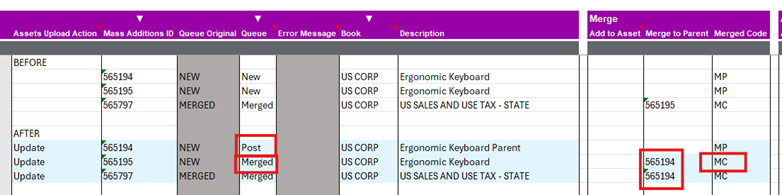
|
Approvals
If Asset Approvals for Additions is enabled for your Book, two additional fields are available in the Mass Additions Integrator: Approval Type and Transaction Group. Set Approval Type to Single to route each record for approval individually, or Mass to group records by Transaction Group and send them for approval together. Transaction Groups must be created in Manage Transaction Groups before they will be available to select in Mass Additions.
Example:

When you run Post Mass Additions, the approval workflow sends notifications based on your configuration and the Approval Status changes to In Progress. After approval, the asset is created automatically and the record progresses to Posted. Managing or troubleshooting the approval workflow is outside the scope of this Integrator; if transactions become stuck, resolve them within your approvals/workflow system.
Assignments
Mandatory columns in the Assignments section must be completed to create an asset.
| Column | Notes |
|---|---|
Units Assigned* |
The number of units currently assigned to the distribution. Whole numbers only e.g. |
Employee Name |
Employee identification name. Assign assets to the owner or person responsible for that asset. You must enter a valid, current employee. |
Employee Number |
Employee identification number. Assign assets to the owner or person responsible for that asset. You must enter a valid, current employee. |
Expense Account* |
The GL account where you wish to charge the depreciation each month. The GL account must be an expense type (i.e. not Revenue or Balance sheet). |
Location* |
Enter the valid physical location of the assets. |
'*' Is required to change queue to Post.
|
|
Please note that you can include multiple records in this section. However, we do not currently support the ability to split these records. For further details, please refer to the Mass Additions Limitations page. |
Assets DFFs
Descriptive Flexfields
In the DFF form, the field controls may not represent the Data Type of each DFF Attribute for the chosen Context. They will be presented as shortlist LOVs as shown below.
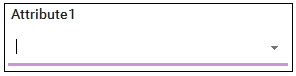
For DFF Attributes with a Data Type of Free Text, a user can type the required value into the available field.
Refer to the Descriptive Flexfields documentation for more information.
Attachments
Attachments are available at the header level.
Attachments are created during the More4apps 'Refresh' stage of the upload process, after the asset has been successfully imported into Fusion. Values must exist in 'Asset number' field, along with the 'Create' upload action, for attachments to be successfully uploaded. The Refresh process automatically populates these.
During the Refresh process, once you have uploaded and submitted the post mass additions, the Integrator will prompt the following question:
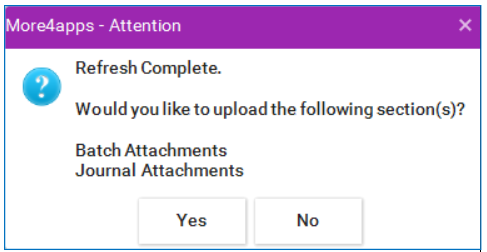
If you click 'Yes' and have 'Create' in the appropriate Attachments Upload Action column, the attachments will be uploaded. If you click 'No', the attachments will not be uploaded.
You cannot upload attachments to existing Assets.