Download via Sheet
Data can be downloaded directly to the sheet by providing criteria in a sheet column or columns indicated with an arrow (▼), returning any records that meet the criteria you specified.

| Some integrators include multiple download options that may not indicate a searchable column on the sheet. For information on these options, see the Download Sources section. |
Download criteria can be modified to search for different values using a wildcard (%). See below on different criteria examples.
| Criteria Example | Purpose |
|---|---|
AS1000 |
Searches for records where the field equals AS1000. |
AS1% |
Searches for records where the field starts with AS1. |
%1000 |
Searches for records where the field ends with 1000. |
%S10% |
Searches for records where the field contains S10. |
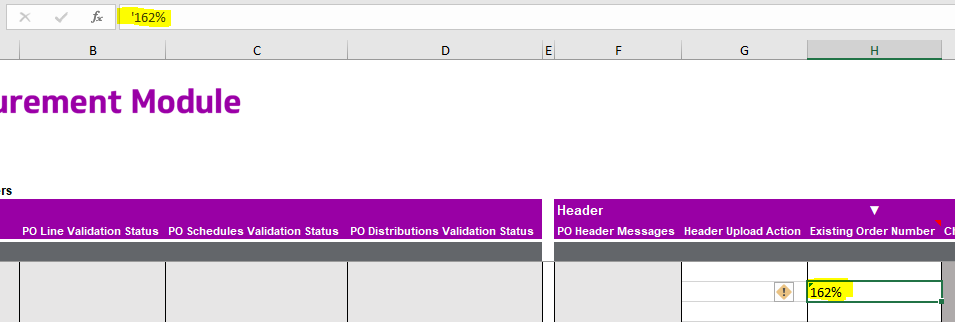
Excel formatting interferes with wildcard filtering on numbers. You must enter a single quote (') at the beginning of the value, for example '162%. This would filter the column to only download data beginning with 162.
|
Download Steps
-
Enter criteria as outlined above.
-
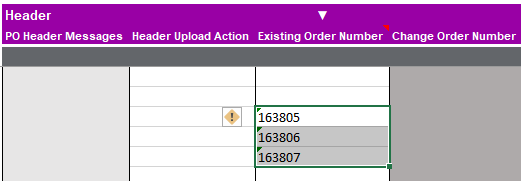
Using the cursor, select one or multiple rows that wish to be searched on.
-
Navigate to and click Download in the Add-in ribbon.
-
Click Download via Sheet.
If a ‘Download Source’ form opens, please read the Download Sources section for information. -
When complete, records will be printed to the sheet. Note that downloading will include all rows in the lower sections of your records.

| If no results return, try limiting the download criteria. |