Download Forecasts
There are two ways to download Forecasts from Oracle using the Integrator. More information about downloading can be found here.
When downloading your data (via Sheet or Form), a prompt will appear requiring you to select a source. Choose either Budgets or Forecasts to proceed. The integrator will fetch and display the corresponding values based on this selection.
| The fields Task Number, Task Name, and Resource Name are only available as search criteria when downloading Forecasts. If you are downloading Budgets, you cannot use these fields to filter your download. |
| While you can successfully download and view Budget data within the Forecasts Integrator, this data is strictly read-only. You cannot modify or update budgets from this worksheet. To create new budgets or update existing budget data, you must use the Budgets Integrator. |
Download via Form
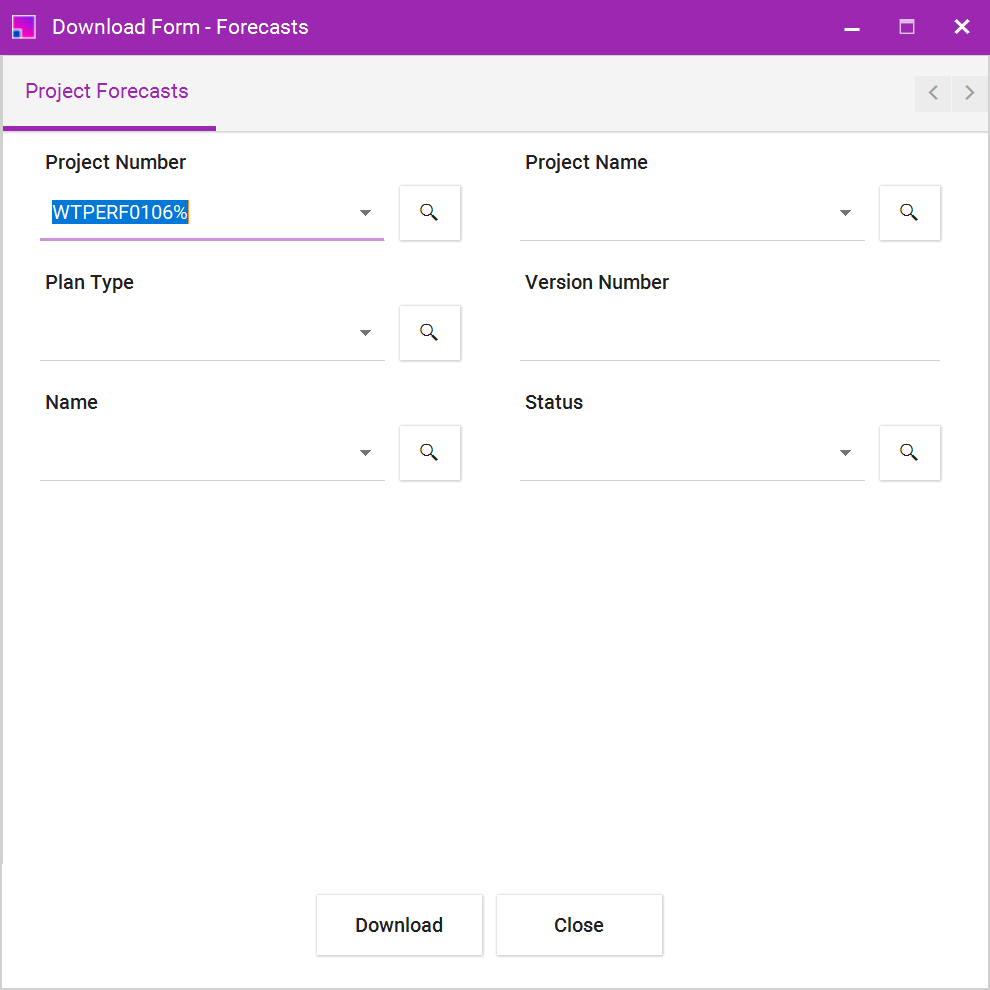
The Download Form will be displayed when the ‘Download via Form’ is selected from the ribbon. Here, you can enter values into the available fields to set the download criteria. Click the ‘Download’ button to download data onto the sheet. Data Form allows you to search for valid values to be used in the search.
Download via Sheet
When the option to Download via Sheet is selected, the Integrator will use the data entered in the columns that allow sheet values to be used as the download criteria to download data to the sheet. These columns are indicated by a white triangle above the column name. Note that not all the columns available on the Download Form are available as values to be used in the Download via Sheet option. Also note that query conditions on the sheet and in the Download form are treated as AND clauses rather than OR in the download query.
