Organising Your Sheets
This page explains how to create, edit, and manage your templates (“sheets”) using the Excel Add-in. Templates define which fields and sections appear in your worksheet when preparing data for upload to Oracle ERP Cloud.
Use this page whether you are building a sheet from scratch or modifying an existing one.
Creating a New Sheet
Follow the steps below to generate a new template. If you already have a sheet created, jump to Editing an Existing Sheet.
-
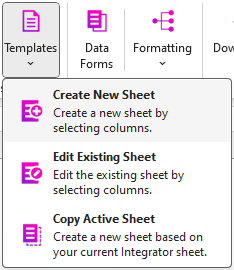
Click the Templates button
 .
. -
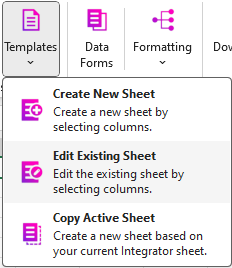
From the dropdown, select Create New Sheet.
-
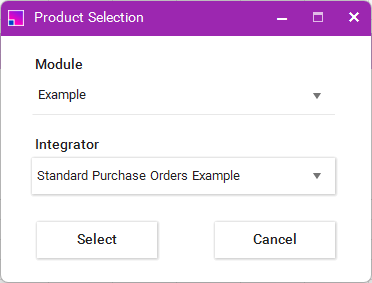
The Product Selection form will appear. Choose your desired Integrator.
-
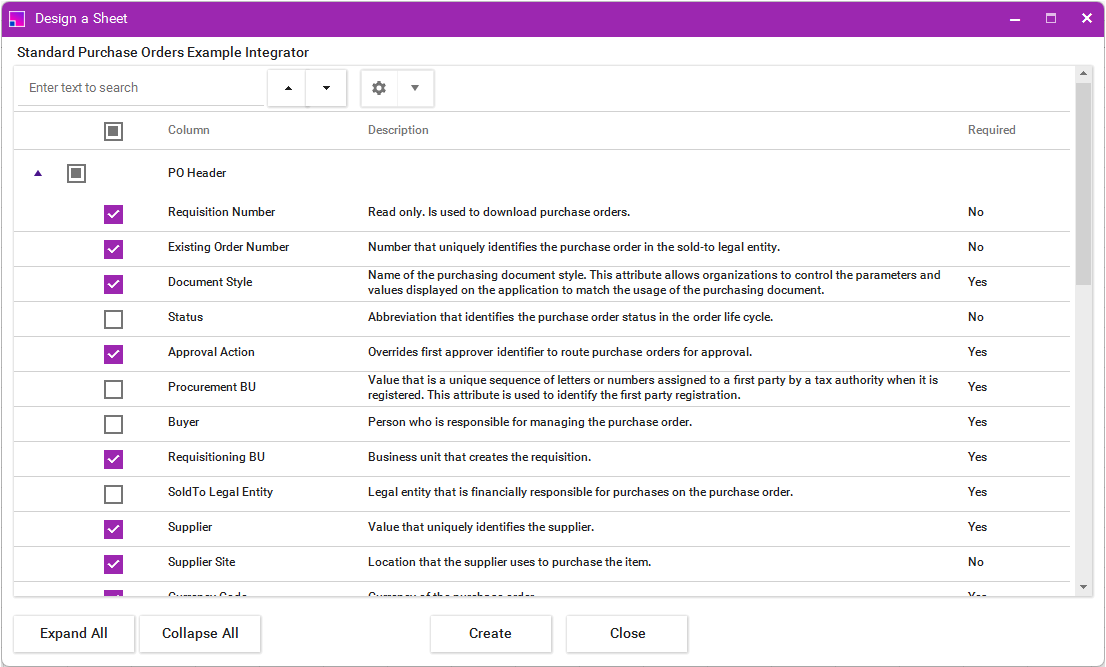
Click Select. The sheet builder form will open, showing all available fields and their descriptions.
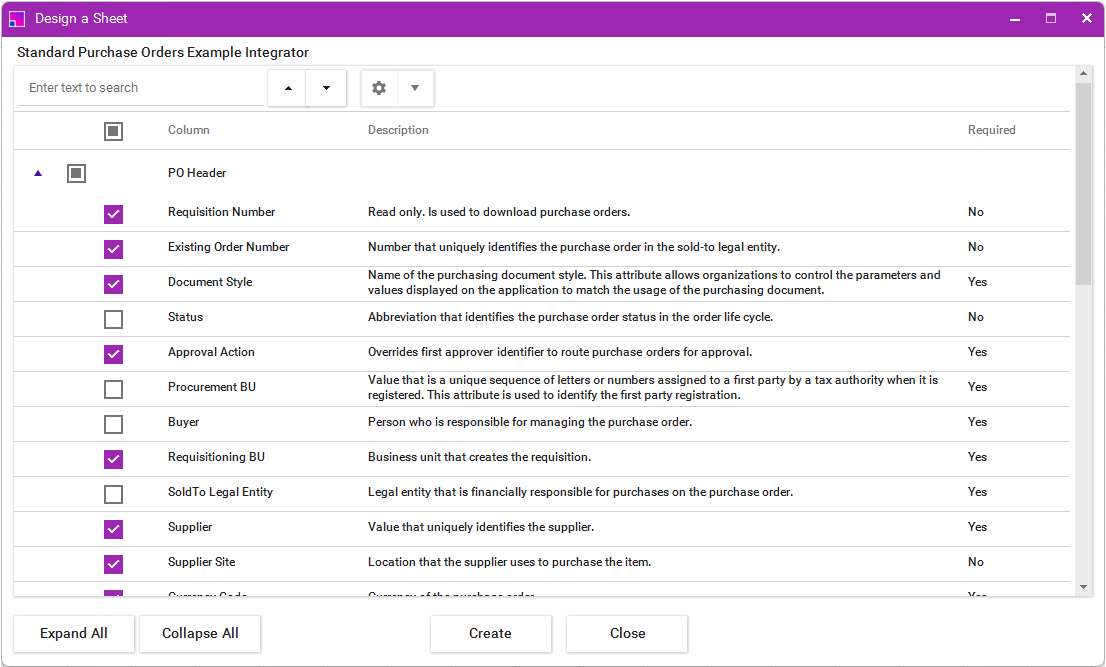
Use the search bar and check boxes to add or remove fields and sections as needed.
Use the topmost checkbox to select or deselect all fields at once. -
Click Create to generate your new sheet.
A worksheet is created containing all fields you selected. Columns may be manually removed in Excel if needed.

-
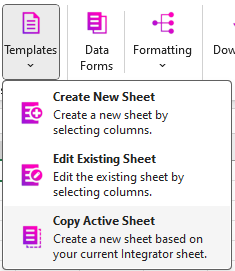
To recreate your template at any time, make sure the sheet is active and click Copy Active Sheet from the Templates dropdown. This creates a new sheet and copies all content from rows 1–10 (your sheet structure and defaults).
Editing an Existing Sheet
Use this option to adjust the layout of a sheet you have already created. If you do not yet have a sheet set up, refer to Creating a New Sheet.
-
Click the Templates button
. -
From the dropdown, select Edit Existing Sheet.
-
The sheet builder will open with all fields currently present in your active sheet preselected.
-
Use the check boxes to add new fields or deselect fields you want to remove.
-
Click Create. A new sheet will be generated using your updated selections. Your original sheet will remain unchanged.
| If your existing sheet already contains the correct layout, you can quickly recreate it using the Copy Active Sheet option instead of opening the sheet builder. |