Restriction of Integrators
These optional Profile Options allow you to restrict user access to Integrators within a Module. When configured, users cannot perform operations in the restricted Integrator.
HAVE IMAGE HERE FROM ADD_IN DENYING ACCESS
Creating The Profile Options
Each Integrator has a corresponding profile option. Details are in the product’s user guide under 'Getting Started > Restriction of Integrators'.
Profiles can be set at either the site or user level. The table below shows which level takes precedence.
| Level | Priority | Example |
|---|---|---|
Site |
Lowest |
Can set a value that spans across the entire site but can be overridden by a User level profile value. |
User |
Highest, supersedes Site |
Will override the value set at the Site Level for a specific user |
Automated Creation (Recommended)
Every Profile for a More4apps Module can be Imported using the Installation Utility, removing the need to manually create each profile option.
Alternatively, manual instructions can be found below.
Manual Creation
-
Navigate to Setup and Maintenance from the Oracle Homepage.
-
Search for and select the Manage Profile Options task.
-
Click the + under the Profile Options section.
-
Populate the fields as specified:
-
Profile Option Code: Code can be found in the associated Module User guide under Getting Started > Restriction of Integrators
-
Profile Display Name: Name can be found in the associated Module User guide under Getting Started > Restriction of Integrators
-
Application: Applications Common Components
-
Module: Common CRM
-
Start Date: Specify the date you wish the profile to be active from.
-
-
Click Save and Close
-
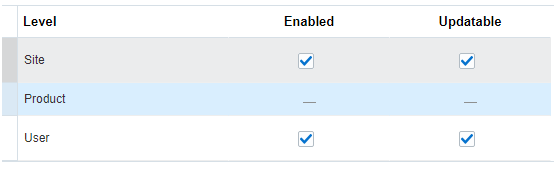
In the Profile Option Levels section, select the checkboxes for the levels you want to enable (Site and/or User). Make sure both Enabled and Updatable are checked for the levels you require.
-
Click Save and Close
Setting Values
-
Navigate to the Setup and Maintenance screen.
-
Search for and select the Manage Administrator Profile Values task.
-
Search for the Profile Option you created in the Creating Profiles Section.
-
Under the Profile Values section click the + and then add your user or site values.
-
Y: Will restrict the Site or User from using the specific Integrator.
-
N or Blank: Will allow the use of the Integrator and the Site and or User level

-
-
Click Save and Close.
These steps will need to be repeated for each Integrator you wish to restrict access to.