Getting Started with the Module
After completing all required PC and Server-Side installation steps, this page outlines how to begin using the Module covering instance list configuration, login, and licence registration.
Get started by opening Excel and locating the "More4apps" ribbon.
Managing Your Instance List
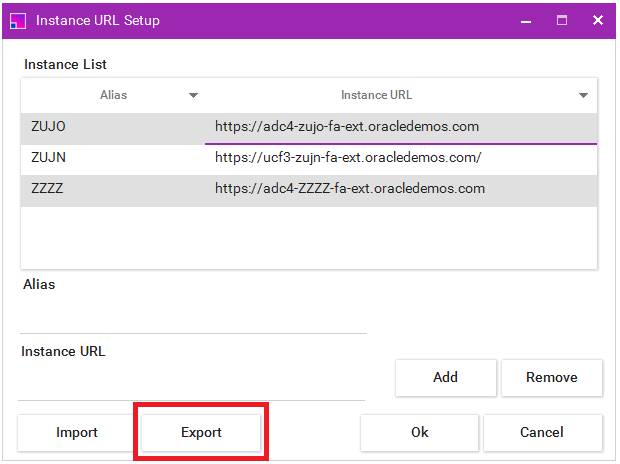
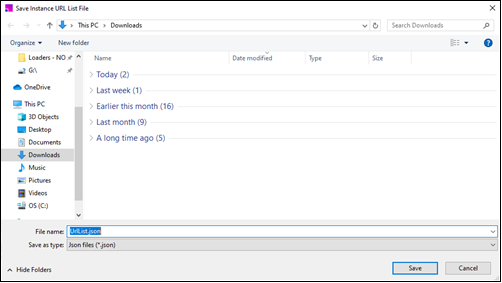
This section explains how to add, remove, export, and import instance URLs used by the login form.
Adding Instance URLs
Follow these steps to set up the login form with Instance URLs.
-
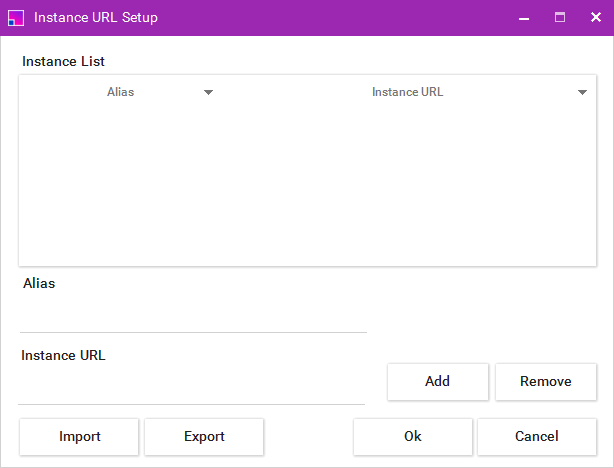
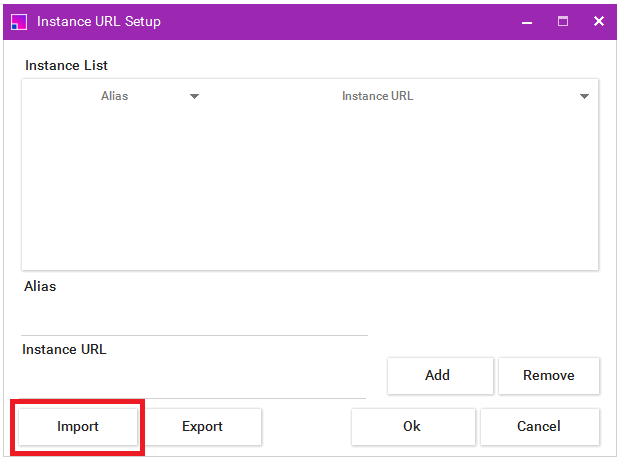
Click the Instances button in the Login form.
-
Enter an Alias of your choosing to represent your instance, e.g. TEST or PROD.
-
Enter the URL of your Instance you intend to log in to.
Ensure the URL does not include login. For example:https://abcd-test.login.fa.oraclecloud.com -
Click Add.
-
Repeat as needed, then click Ok.
Removing Instance URLs
-
Click Instances on the Login form.
-
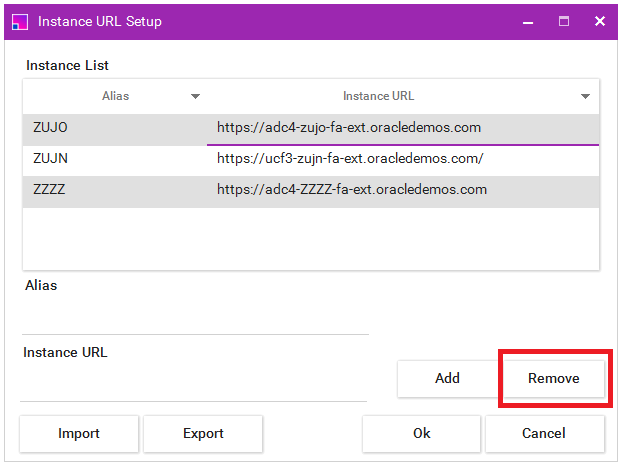
Select the URLs to remove (use Ctrl + Click for multiples).
-
Click Remove.
-
Click Ok.
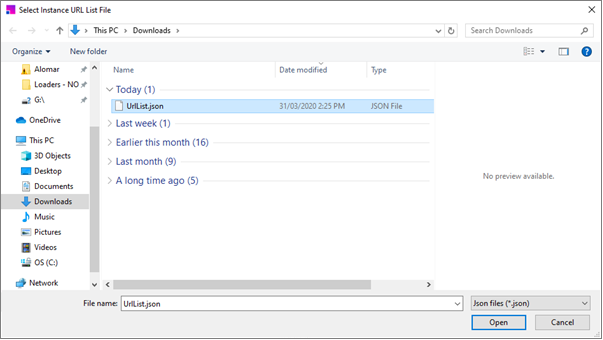
Logging In
-
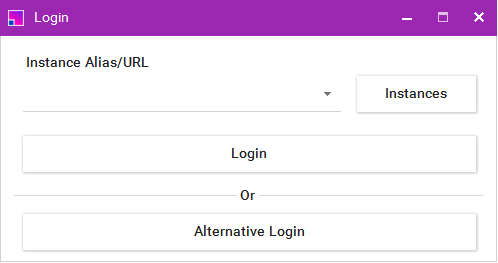
Click the Login/Logout Ribbon button to open the Login form.
-
Select an instance from the dropdown list.
If you do not have any URLs in your list, see the Managing Your Instance List section. 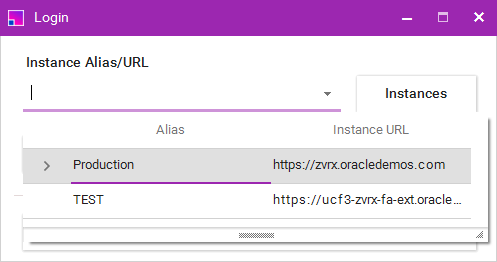
-
Click Login.
-
Your Oracle Cloud login page will open. Log in how you would normally when logging into your instance.
Licensing and Registration
If this is the first time the Module has been used on an instance, a Registration form will appear on first use. This occurs once per Cloud Instance and Module.
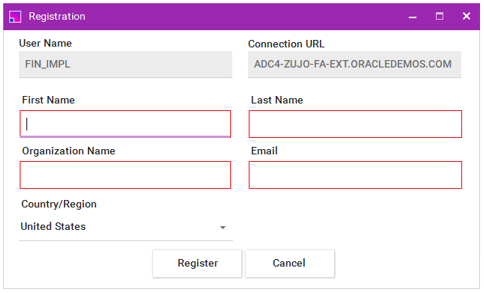
Enter all fields and click Register. A concurrent licence will be created and users may begin using the Module.
Each Module is licensed by concurrent seats. By default:
-
The trial licence lasts 7 days
-
5 seats are automatically provisioned (allowing up to 5 simultaneous users)
To extend the trial period or increase seat count, contact your More4apps account representative.