Importing Profile Options
After selecting your BI Reports, the next step is to import the Profile Options.
When the page loads, the utility checks your environment and indicates which profiles are missing for each module and which modules are already up to date.
| Profile Options are optional, however some products will require a profile option to be set to enable their download functionality. Refer to the Profile Options page for more information. |
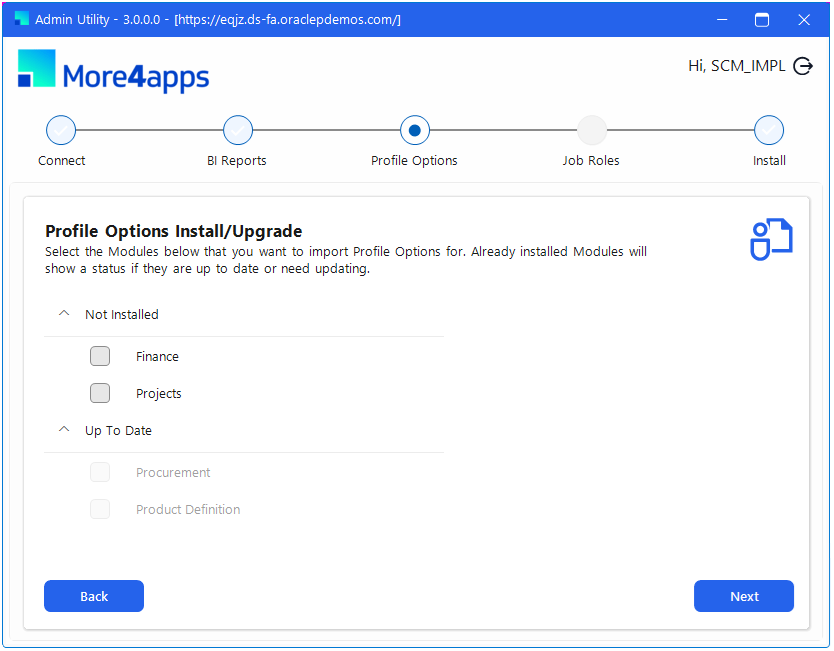
Select the modules for which you want to import Profile Options by ticking the relevant checkboxes, then click Next to proceed to the Importing Job Roles page →
| This step does not assign profile options, you will need to assign these to your users in the Oracle UI. See the Profile Options page for details |