Server-Side Installation
The second stage of installation requires an administrator to install the below components onto your Oracle Instance.
-
BI Reports
-
Profile Options
-
Privileges
Our Admin Utility tool will complete these steps for you. Read below to get started.
To see the tool in action, watch this Admin Utility video demonstration.
Prerequisites
To use all features of the Admin Utility, the Oracle Cloud user account you connect with must have the required Oracle access and privileges.
Profile Option Importing
To import Profile Options, the following privileges must be assigned to the user:
-
Submit Import Setup Data Process (
ASM_SUBMIT_IMPORT_SETUP_DATA_PROCESS_PRIV) -
Export Import Functional Setups User (
ORA_ASM_EXPORT_IMPORT_FUNCTIONAL_SETUPS_USER)
Supporting Privilege
-
Manage Application Profile Option (
FND_APP_MANAGE_PROFILE_OPTION_PRIV)-
This privilege is normally associated with Profile Options UI access, but Oracle also enforces it when executing the backend import service.
-
Job Role Importing
To import Job Roles using Oracle’s import services, the following privileges must be assigned to the user:
Service Privileges
-
Submit Import Setup Data Process (
ASM_SUBMIT_IMPORT_SETUP_DATA_PROCESS_PRIV) -
Export Import Functional Setups User (
ORA_ASM_EXPORT_IMPORT_FUNCTIONAL_SETUPS_USER)
Supporting Privilege (one required)
-
Create Role (
ASE_CREATE_ROLE_PRIV) -
Load Batch Data (
HRC_LOAD_HR_BATCH_DATA_PRIV) -
Access Application Security Migration Services (
ASE_ACCESS_SECURITY_MIGRATION_SERVICES_PRIV)
Although typically used for UI access, Oracle requires at least one of these privileges to authorise Job Role creation when the import service runs.
Get Started
To get started, you’ll find the utility in the Server-Side Components folder of your downloaded Toolbox ZIP file. Simply double-click the Admin Utility.exe file to run it, no installation is required.
| The Admin Utility is tied to the version of the Toolbox you downloaded. Always use the utility that came with the Zip. |
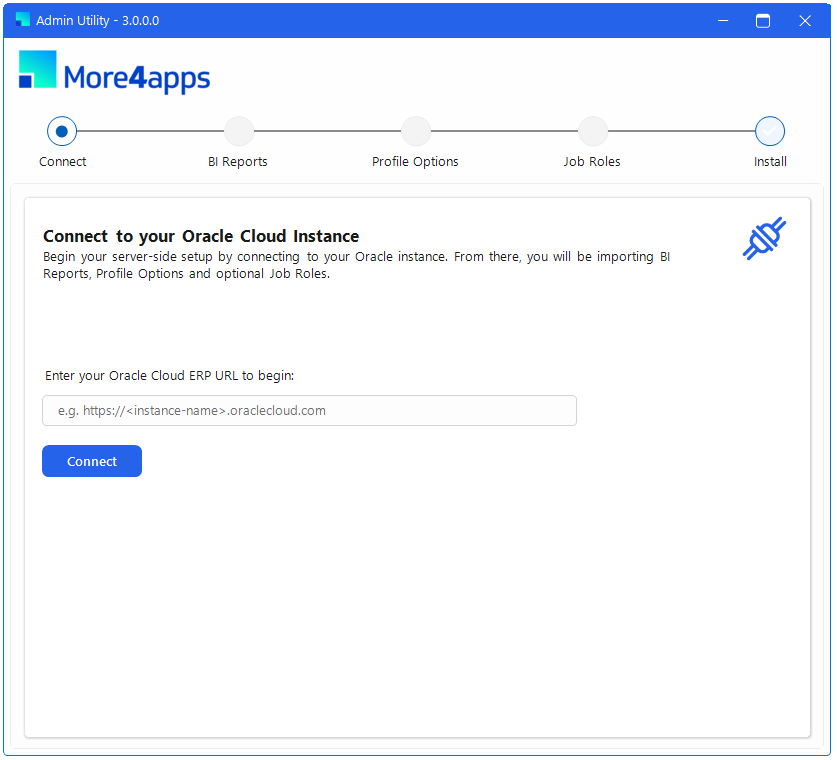
When the Utility opens, it will present the connection page. Enter your Instance URL and click Connect. The tool will perform some upfront checks to verify if BI Reports have been installed.
Proceed to the Importing BI Reports page to continue.